
IMPORTANT
This Smart Content item is for Education Subscriptions only.
Our Art Gallery Smart Content makes it easy to create and showcase your students' art for your community. Follow the steps below to get started:
- In the top right corner of your Feed, click Add and select Smart Content.
- Click on Art Gallery
- In the top right corner, click Add to feed.
- Under Upload Images, choose 'Click to upload' or drag and drop your content. You'll be prompted to fill in some details about the art as well as select the orientation:
- The title of the art piece
- The Author
- Description of the art (optional)
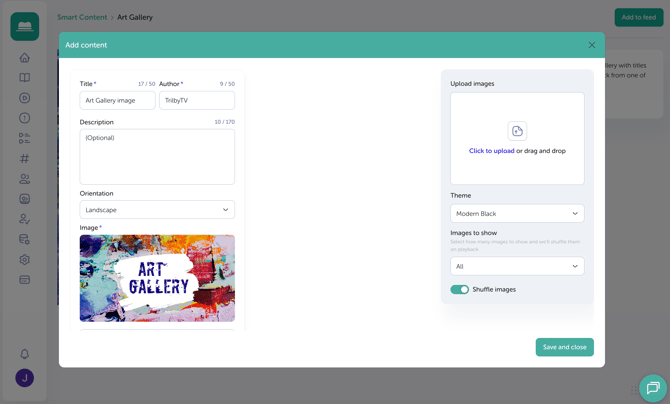
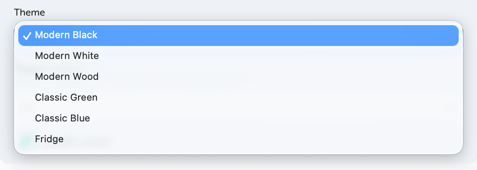
- Choose a theme for your gallery.
- Lastly, choose how many of your images you want to be shown and whether these will be shuffled.
- Click 'Save and close' once you're happy with your changes.