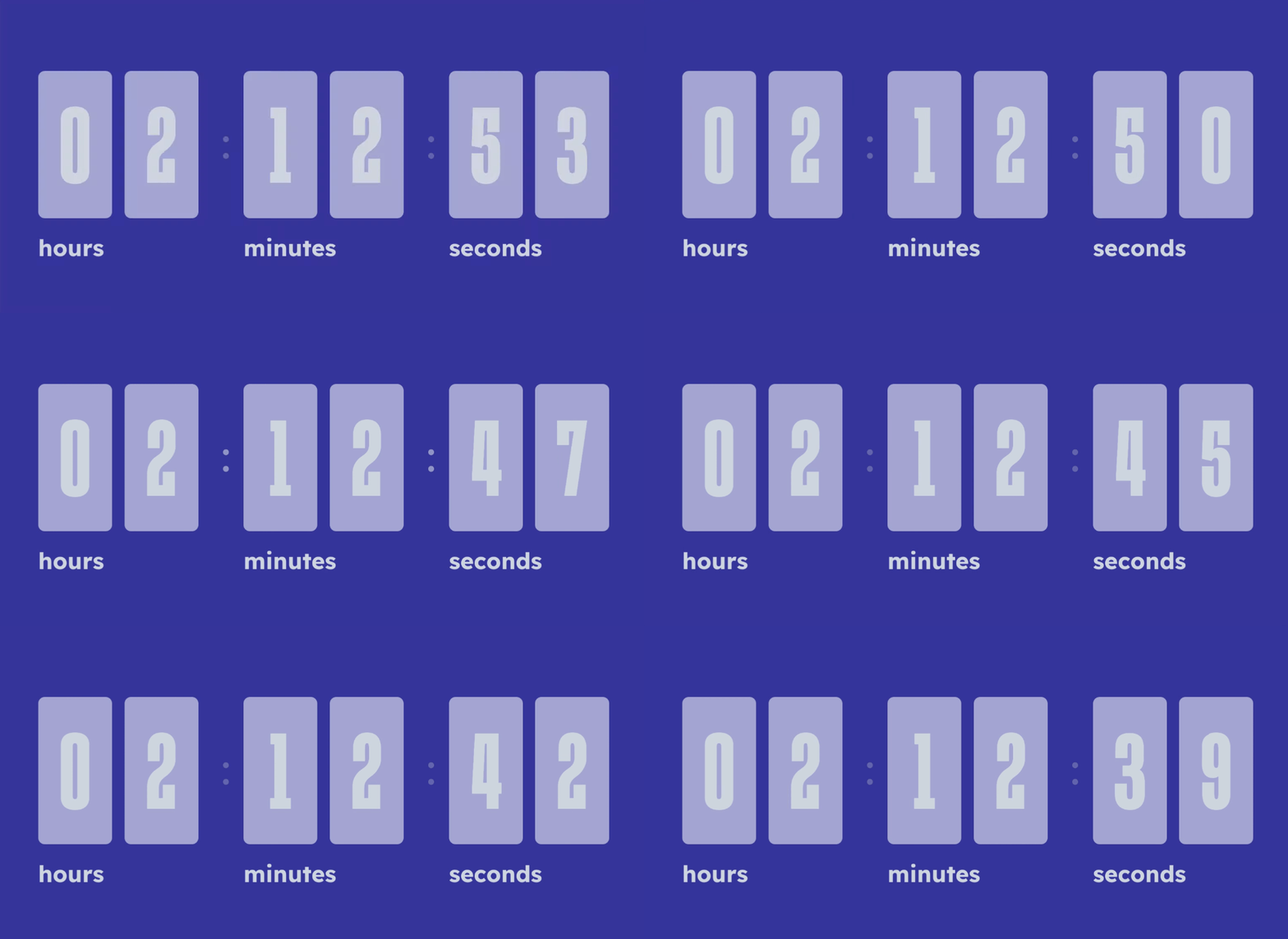
You may want to show a countdown clock on your screens in preparation for an event or a particular time in the day.
You can add a countdown from the TrilbyTV Smart Content, which will show days, hours, minutes and seconds until the end time you specify. You can also configure colours, background image and a title to create a custom version to fit in with your branding
Adding a Countdown Clock
-
In the top right corner of your Feed, click Add and select Smart Content.
-
Click on Countdown Clock.
-
Optional - add a message to the top of your Countdown screen, like "It's lunchtime in"
-
You can enter a date, OR a time, OR both. For example, if you plan to use the clock to inform viewers that they need to be at a daily event for 11:00 AM, then enter the time and leave the date blank. If you are counting down to Christmas Day, just enter the date and leave the time blank.
- Set font and background colour choices.
-
If you want to add a background image, use the search to find an image from the Unsplash library.
-
Then click Save and close.
The countdown will be added to your feed and will need to be approved before it is displayed.
To show the countdown at a specific time each day, use a Schedule. For more information on how to set up a schedule, check out our Using Schedules help guide.
Sample Countdown