
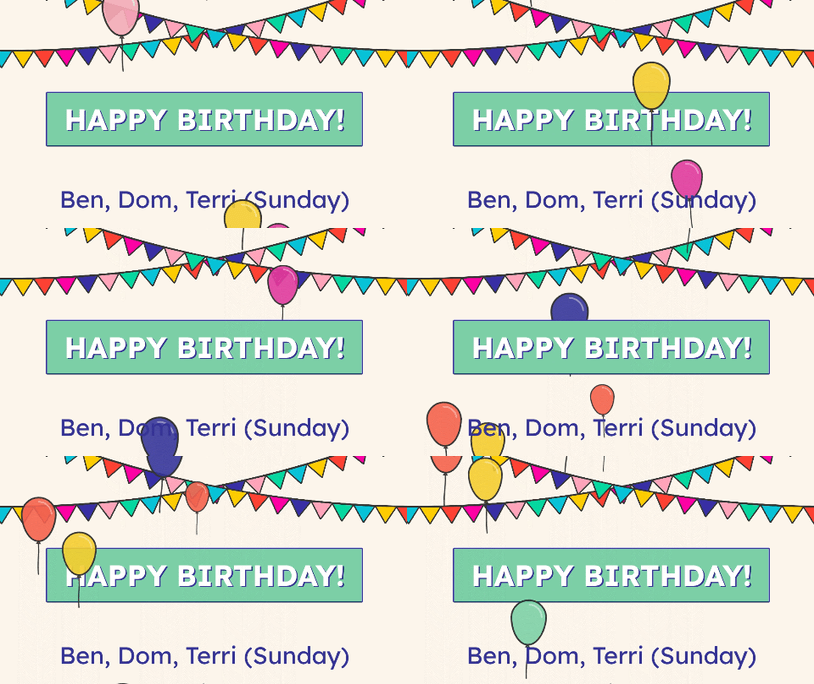
Everyone likes to see their name on the screen, and with our Birthday slides, everyone gets that annual recognition of their birthday. To get the party started and add Birthday slides to your screens, follow the steps below:
- In the top right corner of your Feed, click Add and select Smart Content
- Click on Birthday Slide.
- In the top right corner, click Add to feed.
- Birthday slides allow you to either manually input names and dates (highlighted in red) or import them in bulk via a CSV file (highlighted in green).
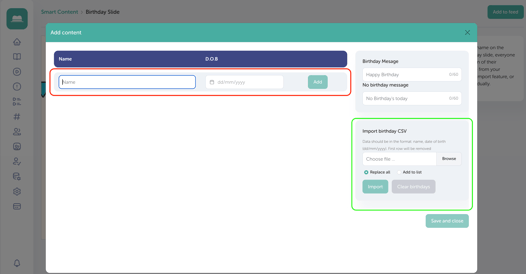
- Manual input: Input a name and click the date of birth to choose a date from the calendar pop-up. Click Add and repeat as many times as required.
- CSV upload: Using a program such as Google Sheets or MS Excel, add birthday information in the following format:
- Column A: Name
- Column B: Date of birth in the format dd/mm/yyyy
- Save your completed document as a .CSV and either drag and drop the file into Choose file or click Browse to locate your file and click Import.
NOTE
Typically, people use the first row of the .CSV file to label each column. Please note row 1 is removed when the file is imported.
Optional: Personalise your birthday messages and no birthday messages; you're permitted up to 60 characters. The default messages will show if no personalisation is added.
Once you've finished adding all entries, click Save and close.
NOTE
-
Large volumes of entries may take time to import. If this is upwards of five minutes, or you're having issues with import, reach out to our team at support@trilbytv.co.uk.
-
You can add additional entries to your birthday slide at any point. Simply click the Birthday Slide you'd like to update and click Edit in the top left corner. Manually input names and dates to the existing list, or upload a new birthday CSV and click Add to list.
-
If you are inputting new names for a new cohort that will replace the previous year, upload a .CSV, click Replace all, then Save and close.