
IN THIS ARTICLE
IMPORTANT
This Smart Content item is for Education Subscriptions only.
Adding Book Review Smart Content
Our Book Review Smart Content provides an opportunity for learning and engagement in your community. Follow the steps below to get started:
- In the top right corner of your Feed, click Add and select Smart Content.
- Click on Book Review.
- In the top right corner, click Add to feed.
- To create your Book Review content, you'll need to:
- Add a title.
- Select a Theme.
- Choose to show reviews or not.
- Add a Book: In the search bar, enter a title, author or ISBN.
- With your book selected, you can choose whether to remove or display the cover.
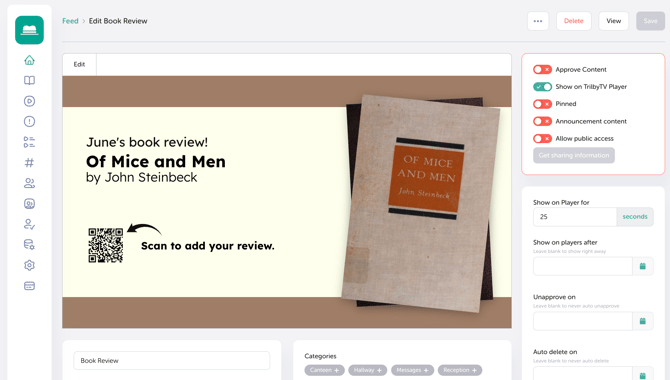
- Click Save once you're happy with your changes. You should see the content load, and the QR code will appear at the bottom left of the content item.
NOTE
-
Clicking Show Reviews will only show reviews that have been approved. We suggest checking the content regularly for new reviews.
-
We use a dedicated library database from which to display book covers. Sometimes, specific versions such as special editions or reprints may not be available.
Gathering Book Reviews
To gather your reviews, you can choose whether to do so using a QR code or a URL. The QR code, as well as the URL, can be taken from the content item to share outside of TrilbyTV. This can be a great way to incorporate the content into lessons without the need to be connected to a TrilbyTV Player.
To get and share your QR code, follow these steps:
- Click Edit on the item.
- In the edit window, you should now have the option to download the QR code.
- You can now take the QR code's PNG and add it to any presentations or documents to gather reviews.
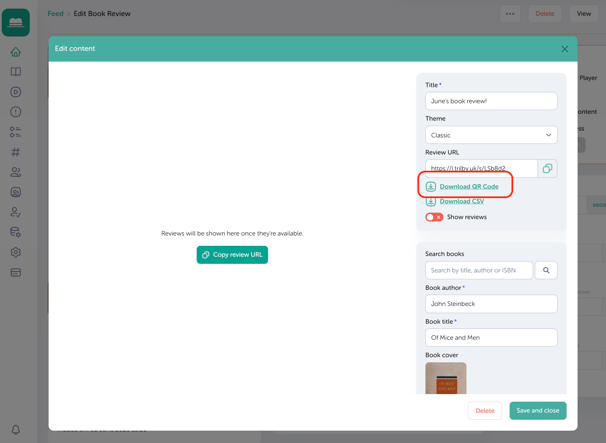
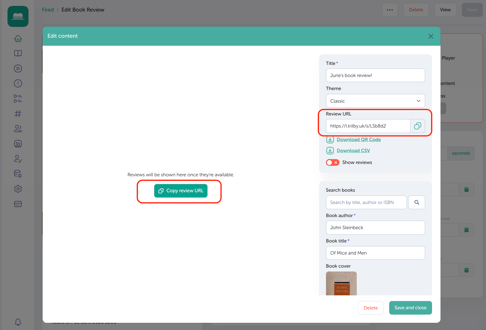
To take and share a URL, simply click edit on the item, and you'll see the option to copy the URL to the right above the Download QR Code button, or in the middle of the screen (this option will stop showing after reviews are submitted).
TIP
If you would like to use the same URL for future Book Reviews, you can choose to delete all current reviews and update to a new book of your choice. This lets your reviewers use the same review URL (which they can bookmark) each time there is a new book to review.
Managing and displaying reviews
Reviews need to be approved before they'll be visible to your community. To do this, follow these steps:
- Within the content, click Show Reviews if you haven't already. Clicking Show Reviews will only show approved reviews.
- Any reviews that have been made will show to the left of the edit content window; you can either Approve, Delete or Edit these.
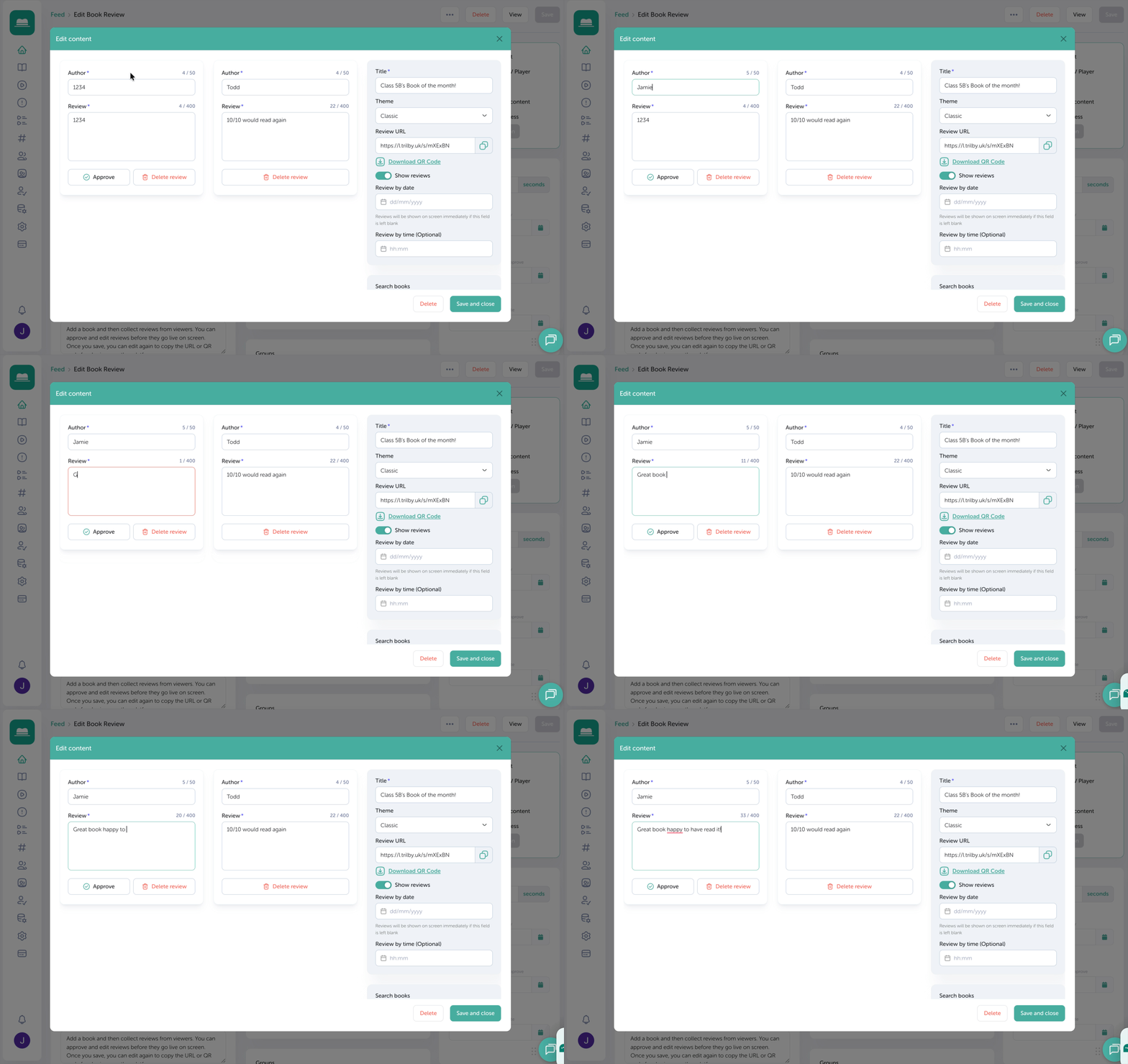
- You can approve any reviews you're happy with by clicking Approve. These will now show on your screens when the content is displayed.
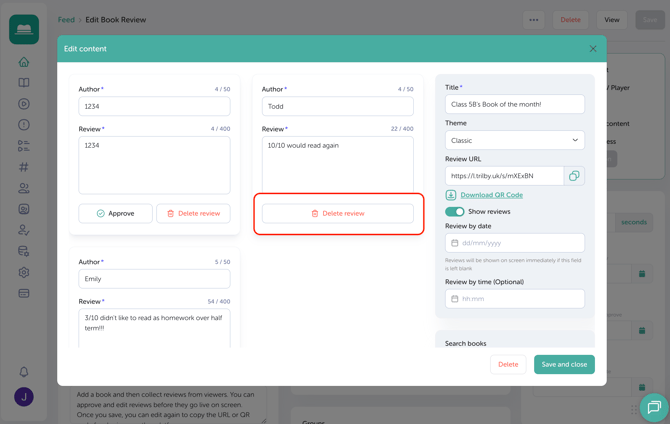
- You can delete reviews for any reason, even approved ones. Simply click Delete Review. Use caution as these are not retrievable.
- Where needed, you can edit the review before approving.
- You can approve any reviews you're happy with by clicking Approve. These will now show on your screens when the content is displayed.