
Canva is a fantastic service to create vivid, eye-catching graphics for your signage. Your creations can be added to TrilbyTV as a slideshow, video or web content.
Canva for Education is free for eligible teachers and students and is available all over the world. Click here to find out more.
Adding live slides
Like Google Slides and Microsoft PowerPoint 365, Canva creations can be added to TrilbyTV via web content, allowing edits to be made to your content without needing to make changes on TrilbyTV.
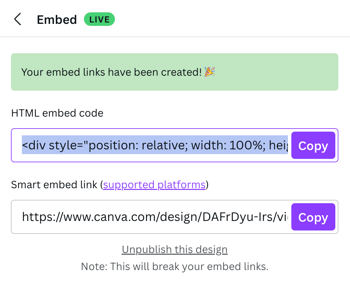
- Once you have finished your design on Canva.com, which can also include Page and Text animations, click Share, then Embed LIVE.
- Copy the HTML embed code.
- Go to your TrilbyTV and click the + icon to Add Web Content.
- Paste the HTML code into TrilbyTV and click Save.
TIP
To upload slides as static images, download as a PDF in Canva and upload them as a slideshow. Check out our Adding a Slideshow for steps on adding a Slideshow to TrilbyTV.
Adding animated content
Subtle motion is a great way to grab the attention of your audience!
- Once you have finished your design on Canva.com, which can also include Page and Text animations, click Share, then Embed LIVE.
- Copy the HTML embed code.
- Paste the HTML code somewhere you can edit it. You'll need to update the code so that anywhere the word 'watch' is present, is updated to 'view' as shown in the example below.
Canva HTML original code<div style="position: relative; width: 100%; height: 0; padding-top: 56.2500%; padding-bottom: 0; box-shadow: 0 2px 8px 0 rgba(63,69,81,0.16); margin-top: 1.6em; margin-bottom: 0.9em; overflow: hidden; border-radius: 8px; will-change: transform;"> <iframe loading="lazy" style="position: absolute; width: 100%; height: 100%; top: 0; left: 0; border: none; padding: 0;margin: 0;" src="https://www.canva.com/design/DAGC3iMwEvM/73At_0xbTvT9WrUI_i1BCQ/
watch?embed" allowfullscreen="allowfullscreen" allow="fullscreen"> </iframe></div><a href="https://www.canva.com/design/DAGC3iMwEvM/73At_0xbTvT9WrUI_i1BCQ/ watch?utm_content=DAGC3iMwEvM&utm_campaign=designshare&utm_medium=embeds&utm_source=link" target="_blank" rel="noopener">Colorful Chess Tournament Instagram Post</a> by Tom Pickrell
HTML code after edits:
<div style="position: relative; width: 100%; height: 0; padding-top: 56.2500%; padding-bottom: 0; box-shadow: 0 2px 8px 0 rgba(63,69,81,0.16); margin-top: 1.6em; margin-bottom: 0.9em; overflow: hidden; border-radius: 8px; will-change: transform;"> <iframe loading="lazy" style="position: absolute; width: 100%; height: 100%; top: 0; left: 0; border: none; padding: 0;margin: 0;" src="https://www.canva.com/design/DAGC3iMwEvM/73At_0xbTvT9WrUI_i1BCQ/ view?embed" allowfullscreen="allowfullscreen" allow="fullscreen"> </iframe></div><a href="https://www.canva.com/design/DAGC3iMwEvM/73At_0xbTvT9WrUI_i1BCQ/ view?utm_content=DAGC3iMwEvM&utm_campaign=designshare&utm_medium=embeds&utm_source=link" target="_blank" rel="noopener">Colorful Chess Tournament Instagram Post</a> by Tom Pickrell
- Paste the HTML code somewhere you can edit it. You'll need to update the code so that anywhere the word 'watch' is present, is updated to 'view' as shown in the example below.
- Go to your TrilbyTV and click the + icon to Add Web Content.
- Paste the updated HTML code into TrilbyTV and click Save.
Any changes made to your Canva project online will be applied when the Player next checks in.
Adding multi-slide presentations
TrilbyTV allows you to live-embed multi-slide presentations directly from Canva.
To do this, follow the Adding Live Slides steps above and once uploaded, enter the number of slides in the presentation in the Slide count field.
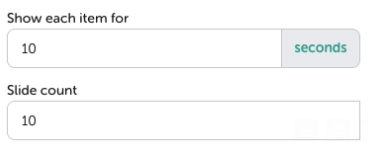
Click Save to update your changes, and your slides are ready to be displayed on your devices. Any changes made to your Canva project online will be applied when the Player next checks in.
NOTE
-
When viewed on your device, Canva's presentation controls will be visible. These can't be hidden, so keep this in mind when creating content.
- Canva content shared to TrilbyTV via an embed link isn't compatible with Apple TV, as it is another type of Web Content.