
Adding your Instagram feed to your TrilbyTV screens gives you a simple way to keep fresh content showing around your school. Once connected, your Instagram posts will show on your TrilbyTV screens with no further action required from you.
IMPORTANT
You will need an Instagram Creator Account or Business Account with Instagram Login, or a Business or Creator account with Facebook Login.
From December 2024, Personal Instagram accounts will no longer be supported.
You will need to be using TrilbyTV Player v4.6 or later in order to view your Instagram posts.
Adding your Instagram feed
Click the Add menu icon and choose Instagram Feed.

Depending on your type of Instagram account, either click Connect to Instagram or Connect to Facebook. The difference is down to how you have your account set up.
Typically, for a school, you will have a Business or Creator account and will use Facebook to log in. When you go through this process, you will be granting TrilbyTV access to your Instagram account to read your Profile information and Media information. You'll need to allow both for your Instagram feed to display.
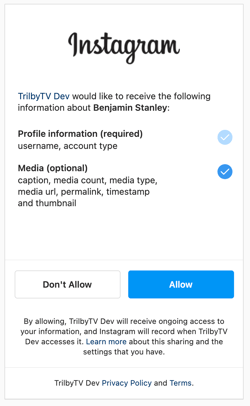
Once you've added your Instagram feed, you will need to save and approve it, then add it to a category or playlist, before it appears on your screens.
NOTE
For Personal Instagram accounts, the profile picture is not shown; this is down to a restriction in how profile pictures are shared by Instagram. For Business or Creator accounts, the profile picture is shown to match the account profile.
Below is a preview from our own Instagram account:
Choosing what's displayed
You can select how many posts to show, the default is 3. Your post and image/video will be shown for the number of seconds you set. A post with multiple images or video will show each image/video for the number of seconds set.
NOTE
Video playback is supported for Instagram and can be switched on/off as required. It is off by default. If video playback is off then all videos will show as still images.
Instagram feeds will appear in your content feed to be added to Playlists, Categories and embedded Players as well as set to show on any screen. Instagram posts can take up to 10 minutes to go from posting to screen.
Protecting content from AI
In July 2026, Meta updated Instagram, opting all public profiles into its Muse Image AI engine by default.
Anyone can now type a Meta AI prompt, @mention your school’s username, and the AI will access your public photos (featuring your students, staff, and campuses) to generate brand-new, altered images.
To protect your community you can turn this feature off in Instagrams settings:
- Open the Instagram app and go to the school's profile
- Tap the three lines in the top-right corner
- Scroll to Sharing and reuse
- Find the setting labelled Allow people to use your content on Instagram and with AI features on Meta.
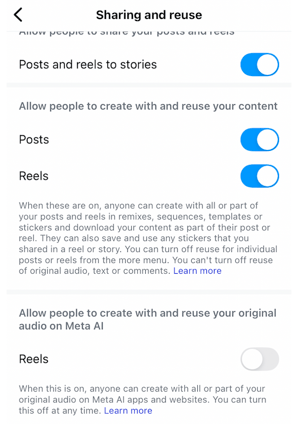
- There will be separate toggles for Posts and Reels. If you do not want public content used this way, switch both off.
NOTE
Meta progressively rolls out updates to its community. You may not see this option just yet, so please continue to check so that adjustments can be made as needed.