
Creating your Leaderboard
- In the top right corner of your Feed, click Add and select Smart Content.
- Click Leaderboards
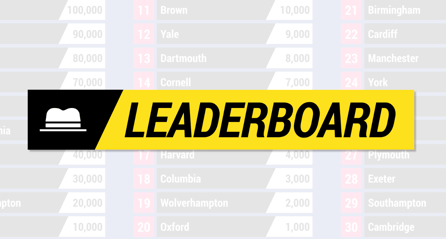
- In the top right corner, click Add to feed.
Add Leaderboard entries
Leaderboard entries can be added manually and/or via a CSV file.
To add entries manually, input the name and points for as many rows as required.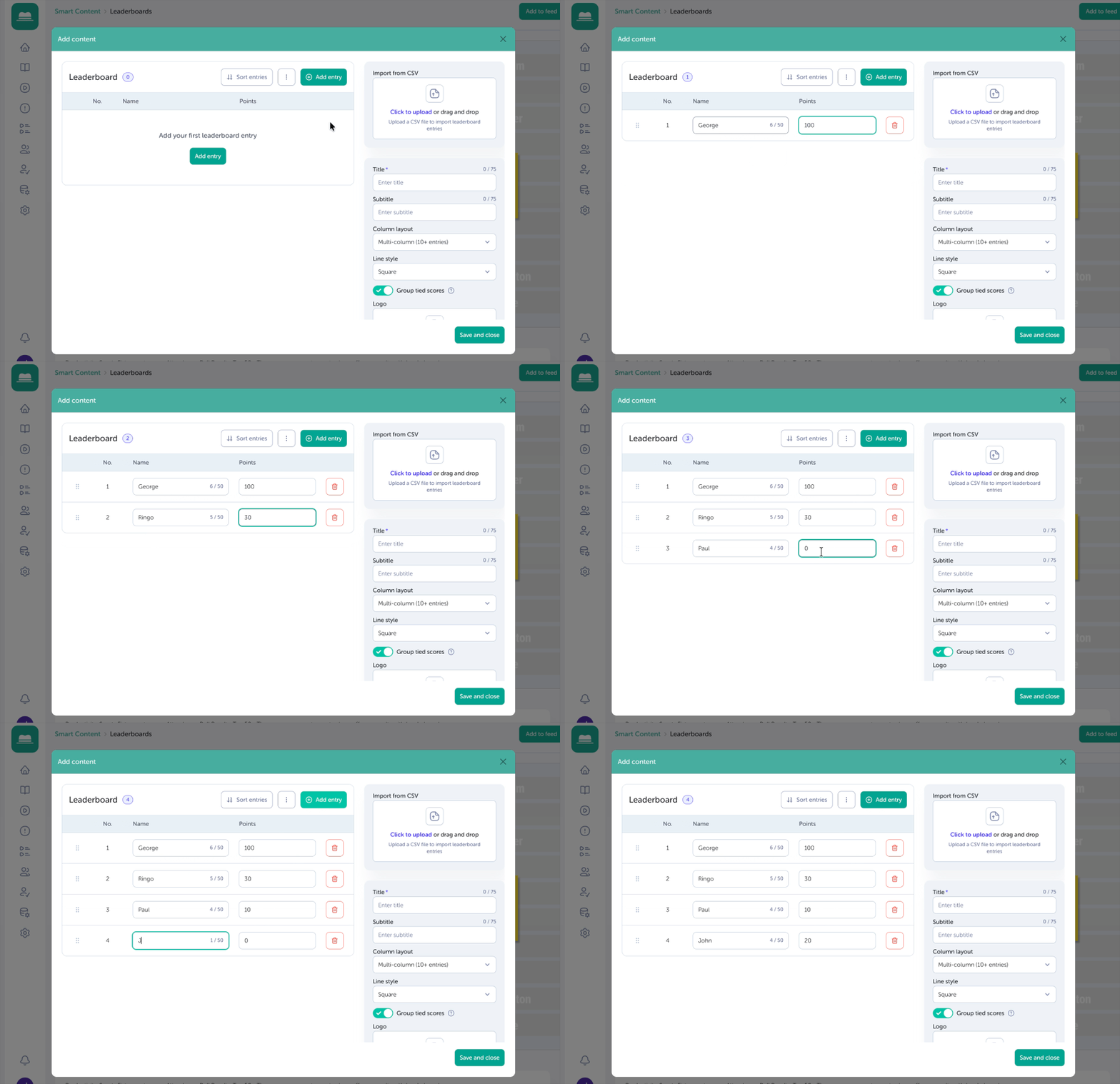
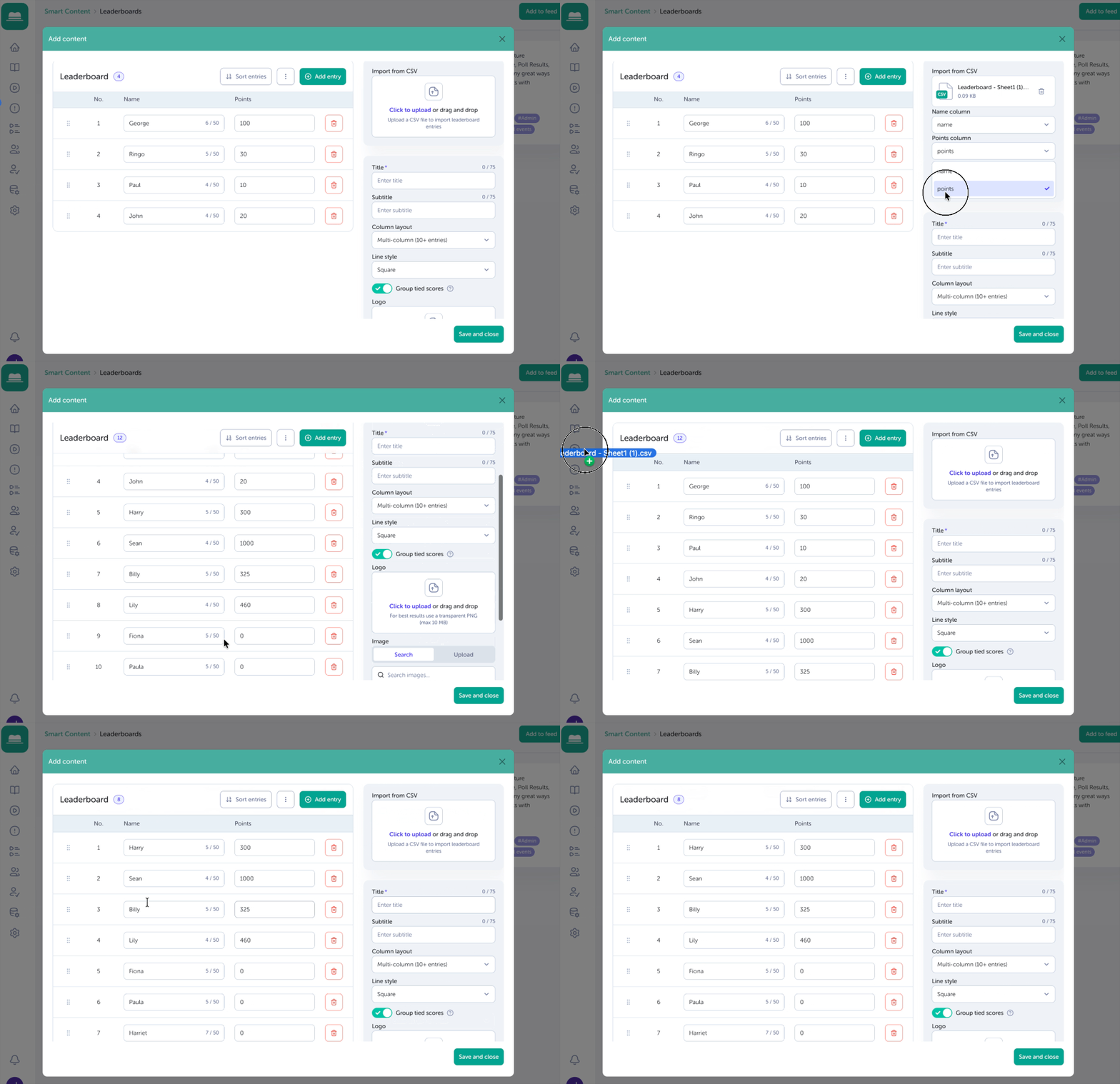
To add entries via a CSV file:
- Create a sheet with two column titled Name and Points in the first row (the first row won't be added to the list of entries).
- Fill in the entries accordingly, save your sheet as a .CSV and download it.
- In your Leaderboard content, select either "Click to upload" or drag and drop your file. Once uploaded, click the dropdown "Name Column" and select the column you've named "Name". Then, click the dropdown for points and select the column you've named "Points".
- If this is the first time you're adding entries, click Import. If there are exising entries, you can either:
- Replace all to replace the current list of entries, or
- Add New to simply new entries to those already added.
- Once you're happy with the entries on the Leaderboard, click Import.
NOTE
- You can use decimals and percentages when adding entries to your Leaderboard.
- You can use a mix of percentages and whole numbers; percentages will auto-sort to the top of the leaderboard.
- Any CSV-imported entries with a blank cell in their number column will give a 0 in place of a blank entry.
TIP
By default TrilbyTV sorts entries high to low; by clicking the more options button to the right, you can sort entries in more ways.
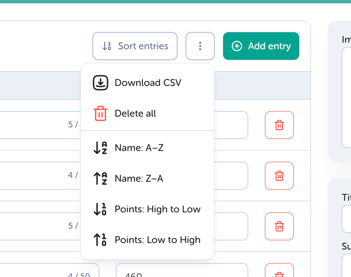
Here you can also permenantly remove all entries by clicking Delete all or save all by clicking Download CSV.
Customising your leaderboard
You can customise your leaderboard to fit a theme or your branding. You can update:- Title (Mandatory*)
- Subtitle (Optional)
- Column layout: Multi-column (10+ entries) or Single-column (Image required)
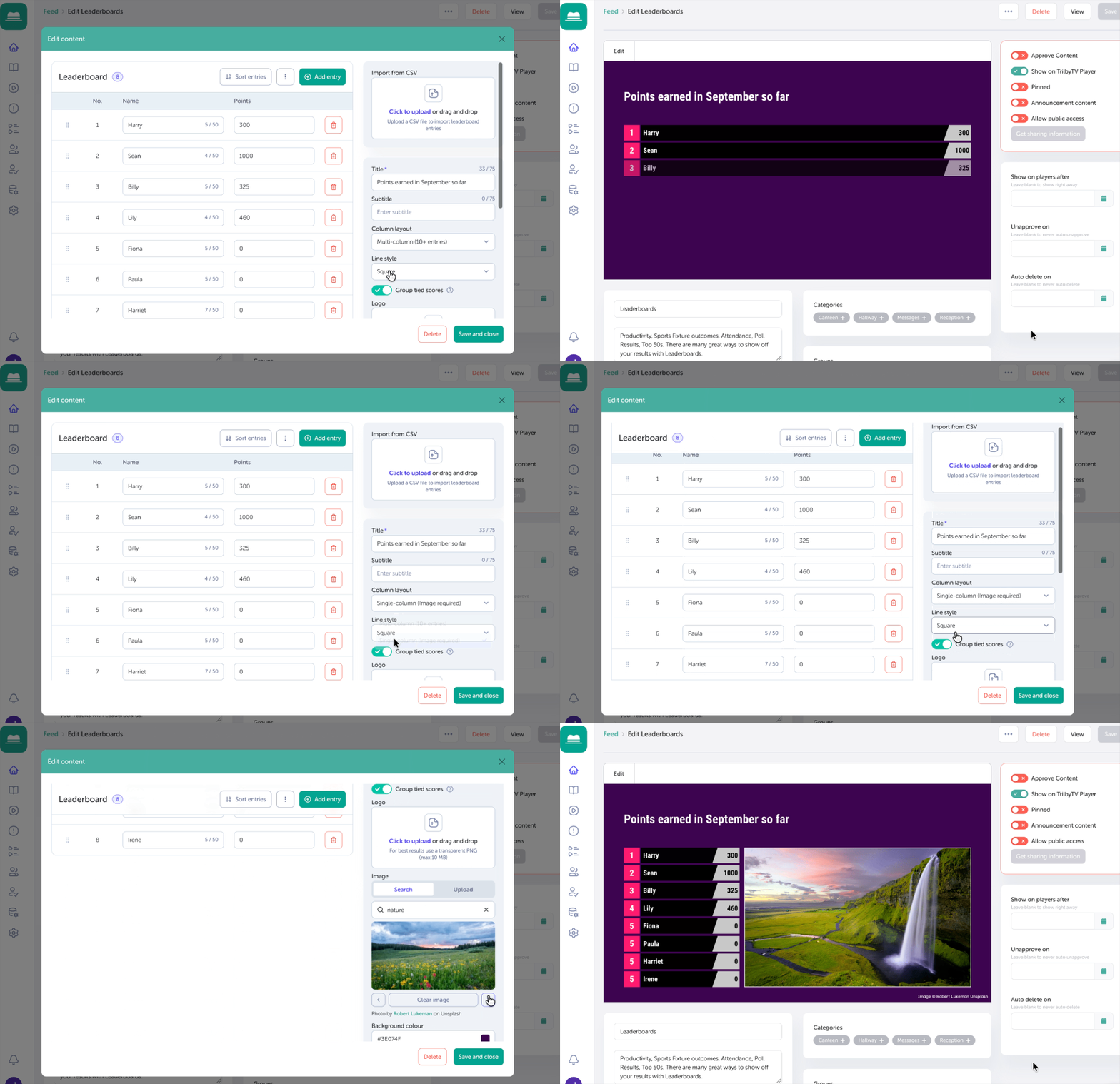
- Line style: Square or Rounded
- Select whether to group entries with the same points in the same rank. When disabled, ranks are always sequential, i.e., 1, 2, 3.
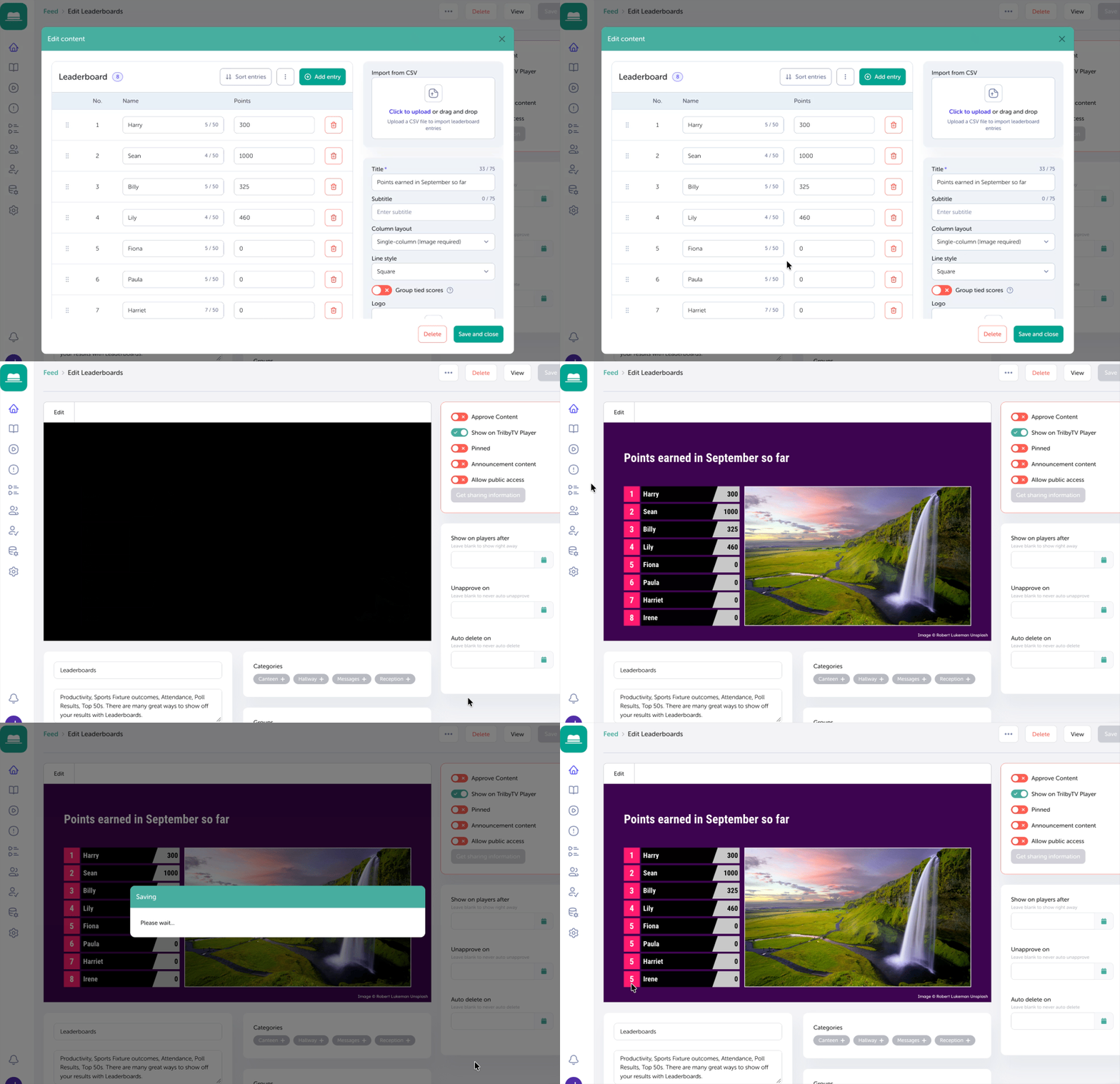
- Upload your Logo (Optional)
- Choose or upload an image for the background (Optional)
- Choose a Background Colour and Rank Colour (default colours will be #3E074F and #FF1B6E)
IMPORTANT
-
When using the multi-column layout, it will display a maximum of 30 entries per slide on a landscape screen; on a portrait screen, it will display 20
-
When using the single-column layout, it will play the Leaderboard in groups of 10 regardless of the screen's orientation.