
Adding Shout Out Smart Content
Use our Shout Out Smart Content to collect and share shout-outs from your community. A new Shout Out is shown each time the item is displayed.
- In the top right corner of your Feed, click Add and select Smart Content.
- Click on Shout Out

- In the top right corner, click Add to feed.
- To create your Shout Out content, you'll need to select a Theme. You can choose from:
- Blocks
- Bubbles
- Rainbow ring
- Once selected, click Save and Close.
TIP
You can download the QR code or share the URL for submitting Shout Outs. These can be useful to share on your website or in emails.
Submitting Shout Outs
If you scan the QR code, you'll be taken to the Shout Out page, where you'll be asked to fill out a form. The form asks for:
- Your name
- Shout Out heading
- Details of the shout out
- A picture (optional). If you choose not to upload an image, we will use a default image in its place.
- Shout Out display timeframe
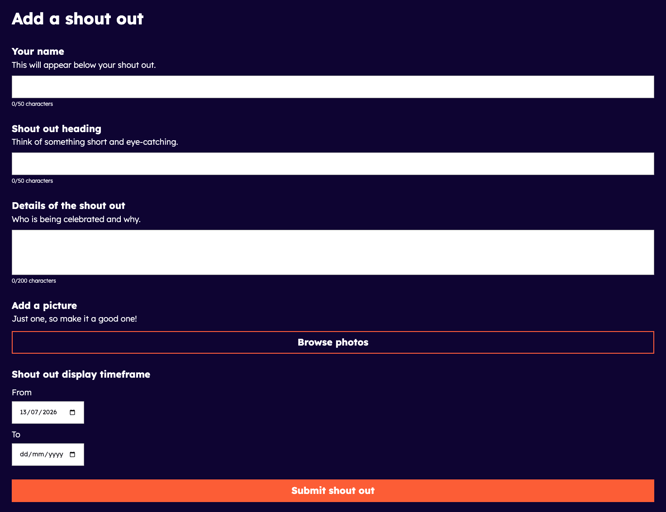
Any Shout Outs submitted will need to be moderated by an Admin and will appear on your signage once approved.
Managing Shout Outs
To see submissions, go to the content item and click Edit. There you will see the three status titles: Pending Approval, Approved and Expired.
All Shout Outs will be put into Pending Approval before being shown on screens.
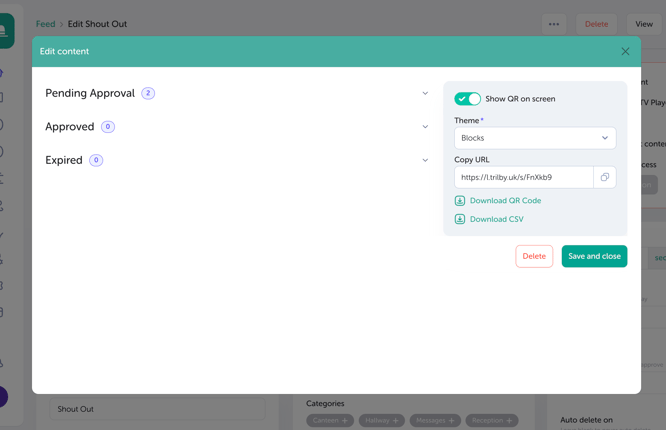
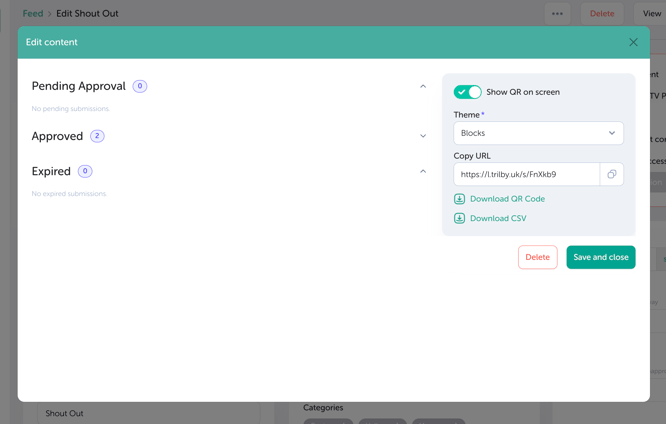
You can choose to edit any Shout Outs before approving them. Approved Shout Outs will move from Pending Approval to Approved; a different Shout Out will show on your screens each time the content is played.
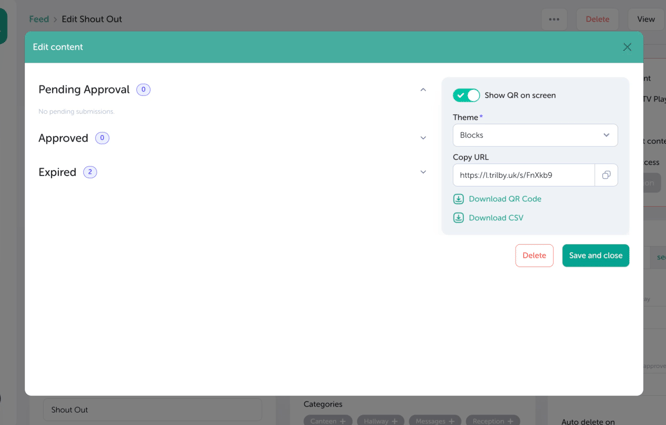
Once the Show Until date has passed, Shout Outs will go to Expired. You can show these again at any point by changing the Show Until date.
TIP
You can export your Shout Outs data by clicking Download CSV. This can be useful if you want to keep track of submissions.
IMPORTANT
Shout Outs that are deleted cannot be retrieved.