
THIS ARTICLE
Announcements give you a way to take over all screens or a group of screens to show a single item from the TrilbyTV feed.
TrilbyTV Players check in with the server every 60 seconds for updates, and as long as the Player is online and active, an announcement will typically go live in less than a minute.
Scheduling an Announcement
- Go to Announcements and click Add Announcement.
-
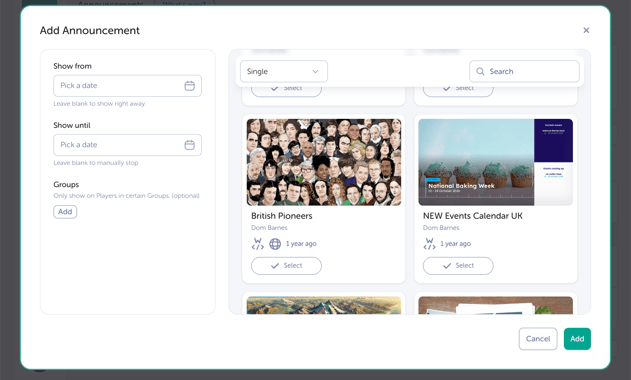
Choose the time to start and end the announcement. If you leave these blank, it will start straight away and continue until you remove it. In the example below, the announcement starts on the 1st of December and will remain on screen until manually turned off.
-
If you are using the TrilbyTV Groups feature, then you can also select which Group of screens to display the announcement on.
- Before saving, select the content you'd like to show during the announcement. You can choose any Category, Playlist or Single item to announce. Recently used items will appear at the top of the list, and you can use the search and filter tools to find a content item.
- Click Save, and your Announcement is ready to go.
Stopping an Announcement
You can see which Announcements are currently playing as well as ones which are scheduled; these need to be stopped or changed using different methods
-
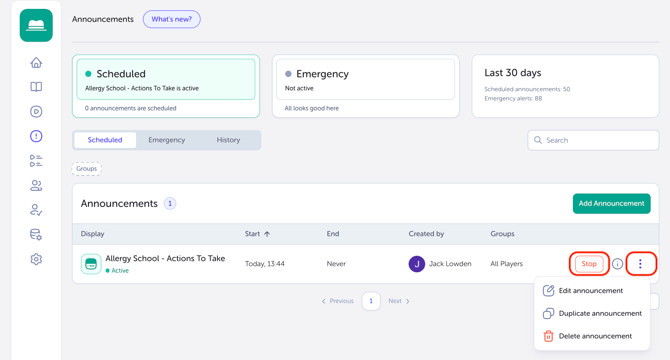
For current Announcements, there are buttons to Edit, Duplicate or Stop. To stop a current Announcement, click Stop; to Edit, Duplicate or Delete, click the more options button.
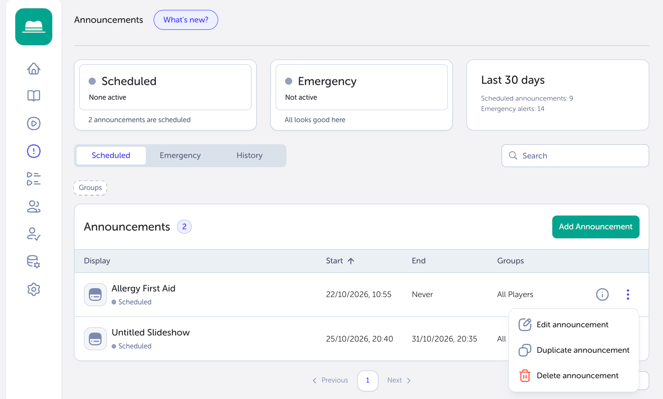
- For Upcoming Announcements, there are buttons to Edit, Duplicate or Delete. Duplicate makes it easy to quickly grab and copy an Announcement, change the dates, content or Group, and then make it live.
Creating Announcement content
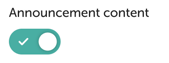
You may have a content item that you only wish to use for announcements. In this case, turn on Announcement content on the content item Edit page.
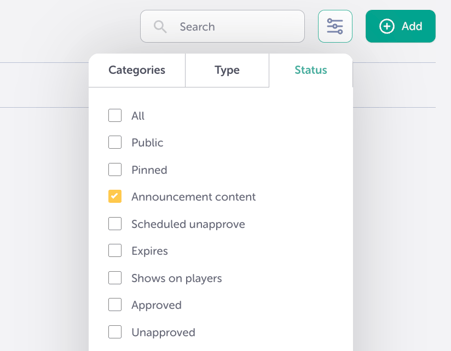
You can filter for Announcement content in the Feed; simply click Filter > Status > Announcement content.
NOTE
- Used as part of an Announcement
- Part of a Playlist
- Being played in Single item mode
Viewing Announcement History
To see what Emergency Alerts and Announcements have been played, go to Announcements > History. Here, all past alerts and Announcements can be viewed.
The History page for Emergency Alerts will show:
- Name of the Emergency Alert
- Time Started
- Time Ended
- Groups added
From the history page, past Announcements can be easily duplicated.