The billing page shows your current subscription. You can add to and amend it at any point.
IMPORTANT
Please note that all prices in this guide are shown as dummy pricing; for accurate pricing, please go to Billing in TrilbyTV or our pricing page for up-to-date pricing.
Current subscription
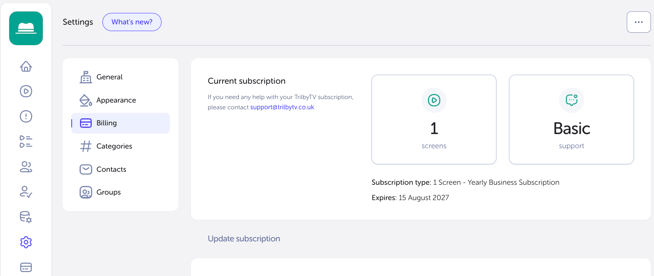
You can view your current subscription details by going to Settings > Billing. In this section of Billing, you'll be able to see your subscription type (i.e, 1 Screen - Yearly Business Subscription) and your expiration/next payment date (i.e, August 15th 2027).
Changing your Subscription
You can upgrade your subscription at any time to increase the number of Players you can connect to your account.
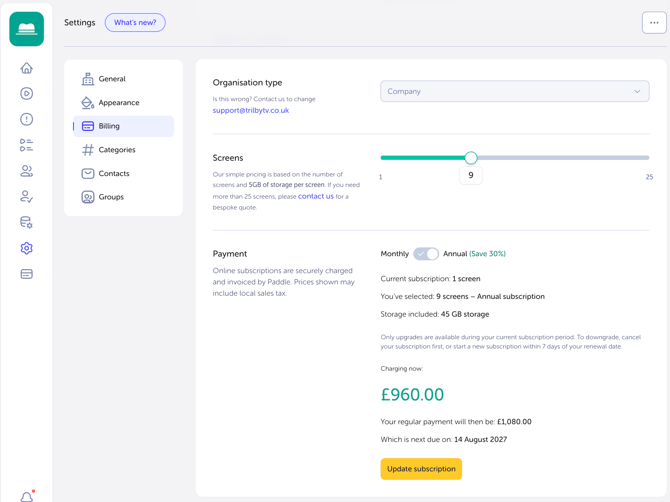
If you have purchased online, you can upgrade your plan online using the Subscribe section. Adjust the slider to increase the number of players and select your new support package. You will be shown the pro-rated cost for upgrading and your new renewal cost, which will be charged at your next renewal date. Once you've chosen your new plan options, click Checkout to complete the upgrade, and it should take effect within a few minutes.
If you purchased via invoice, you will need to contact our Sales team or your reseller to request upgrade costs based on your needs.
If you're upgrading to a Support Plan with training options so that your team can benefit from training and signage reviews, be sure to go to our Training booking page to book. Or contact us via our support channels for more assistance.
IMPORTANT
Online subscriptions are securely charged and invoiced by Paddle, our Merchant of Record. Prices shown do not include local sales tax.
If you do not expect to pay taxes, you will need to contact Paddle to provide your tax exemption certification details by emailing assist@paddle.com.
The card details provided when initially purchasing your subscription will be used to invoice for any changes made.
Updating payment details and cancelling your subscription
To update your payment details, simply click the Update payment details text for the pop-up to show.
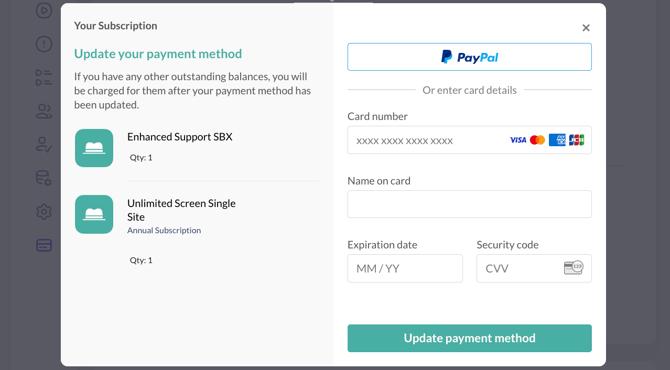
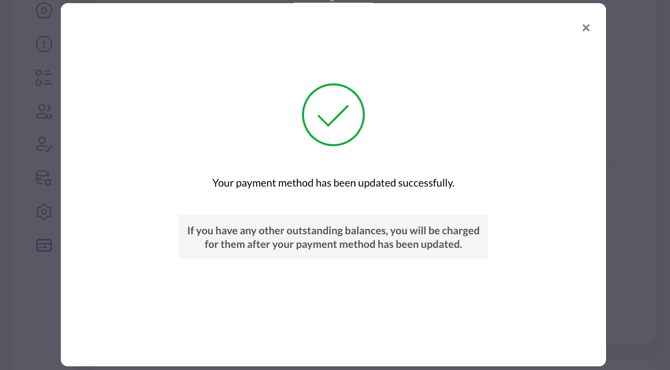
Once you've clicked Update payment method, you should see a confirmation that the details have been updated. If you don't, or you get an error message, reach out to support@trilbytv.co.uk.
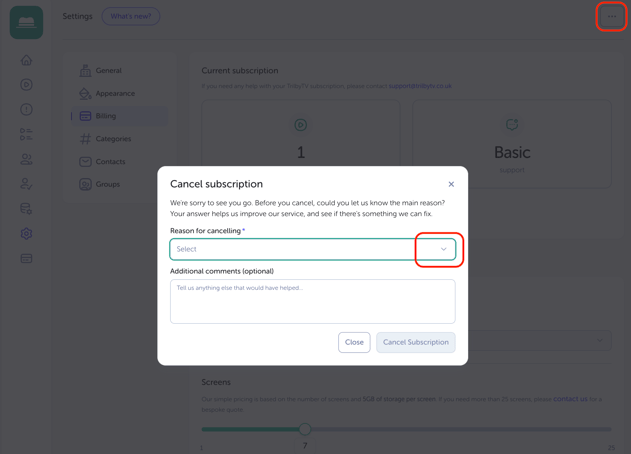
To cancel your subscription, in Billing click on the button in the top right, then you'll see the Cancel subscription button. Clicking this will trigger a pop-up that will ask why you want to cancel; select a reason (and, if possible, provide further information in the additional comments box below). Once you've selected one of the options, click Cancel Subscription.
NOTE
If you want to downgrade your subscription, you need to cancel it and then take out a new one after it expires. If you have any issues doing that, reach out to us at support@trilbytv.co.uk.
Billing History
To view Billing history, go to Settings > Billing. In the top right, you'll see the button to take you to the Billing history page. If you click that and then the Billing history button, you'll be taken to the page.
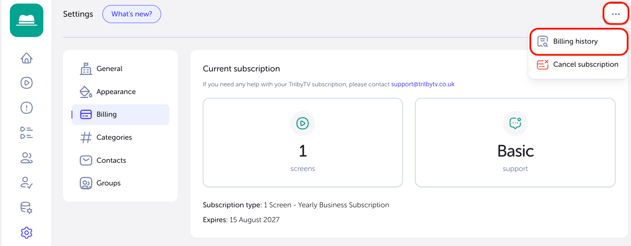
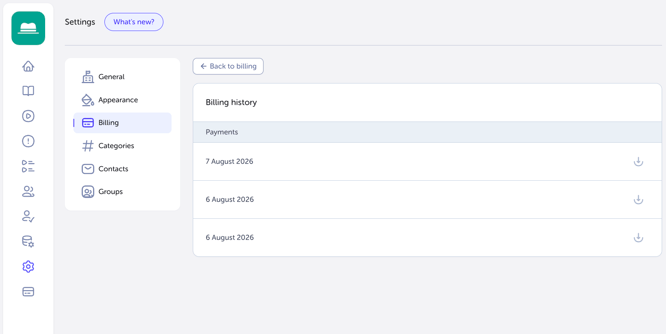
This section of Billing allows you to view all past payments. In this section, you'll see a list of dates as hyperlinked text. If you click the text, it'll open a copy of the invoice for you.