
Changing the Default Playback
There are two quick ways to change the default playback.
In Calendar View, you can see all existing schedules for the current day, as well as using the arrow buttons or date picker to jump to a specific date. When viewed as a list, this provides a scrollable display which shows all upcoming schedules.
NOTE
Unless changed, the Default Playback will show the last 20 approved content items (as well as any pinned content) on your feed, in the order in which they appear, in a continuous loop.
Calendar view (default)
- Go to Players.
- Select the Player you’d like to change the Default Playback of.
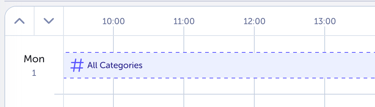
- In the Calendar View, click the banner, which by default says #All categories. This will update as you set new default content to display.
- In the pop-up that appears, choose from one of the following options:
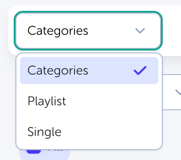
- Categories: Select 1 or more categories from your list to playback. You could use categories based on subject areas, or create a Category for each screen and assign videos to those. You can also set a limit on the number of videos from those categories to playback. This allows you to only show fresh new content by setting a low number limit.
- Playlists: Playlists let you pick and choose selected videos to playback in a chosen order. Create a Playlist from the menu, and click to add your videos. These playlists are then available to you when you configure your Player devices.
- Single: Choose a single item to play back in a loop; this works well for a promotional video on an event day.
- Click confirm once you've chosen the item(s) you wish to play to save your choice.
TIP
- When the Default Playback is playing a category by default, it will show the latest 20 items added to your system. You can change this at any point.
- You can Pin content, which means it will always show on the Player if it is in the selected category, regardless of the Player limit. The pinned option works well for your Instagram feed, which you may always want to be shown, even if it is outside of the Limit set.
List view
To change the Default Playback:
- Go to Players.
- Select the Player you’d like to change the Default of.
- In the top right corner, opposite the Player's click List, to get to List view.
- Click the edit icon on the banner below Default playback.

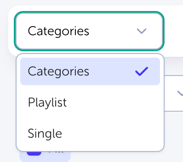
- Choose from one of the following options:
- Click confirm once you've chosen the item(s) you wish to play to save your choice.