
Content Management helps you to manage approval settings, playback options and public access for multiple content items at once. You can also delete content added over time, which helps to keep you within your storage allowance. Multiple or all content items can be selected to have actions applied in bulk.
NOTE
Only users with Admin permission can access Content Management.
How to apply bulk actions to content
-
Click the Content Management icon in the sidebar. You can use the Categories filter, Content age filter and Search box to filter your content to just one category, or even search by username.
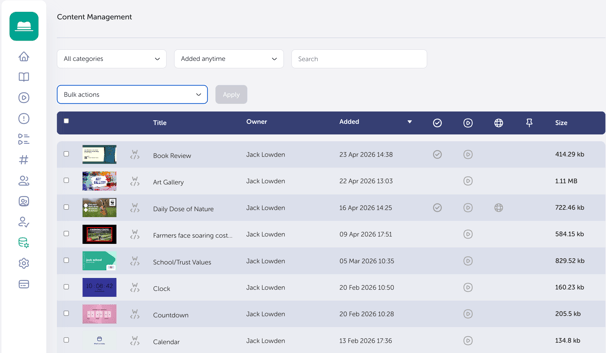
- Use the checkboxes on the left-hand side to select the content you want to manage or click the header row checkbox to select all.
- Choose your action from the dropdown.
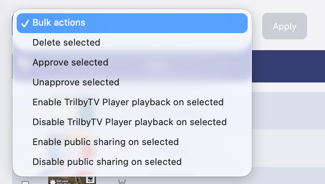
- Click Apply to save your changes.