IN THIS ARTICLE
The Groups feature in TrilbyTV allows you to group Players, Users and Content.
For example, you may have a set of 3 screens in the Humanities block. You only want the Humanities staff to access and control those screens and content, so you need a Group.
Until you enable your first Group, the interface elements for adding things to Groups are hidden. Once you add a Group, it will become visible in all areas of TrilbyTV. Admin-level users see everything regardless of Groups.
NOTE
Once you add Groups, they become active across your TrilbyTV. Any content and Players will need to be tagged to a Group for the people in the Group to view it.
Creating a Group
NOTE
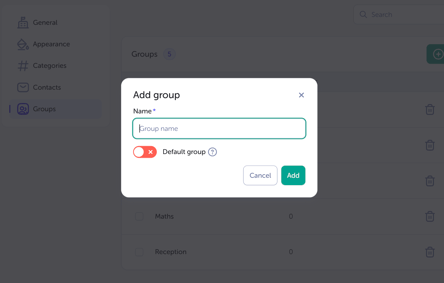
You can choose whether to make a Group the default for new users. Selecting this will make any new users a part of this Group; doing this won't affect any existing users.
Adding Users to a Group
- In Users, click Edit on the user you'd like to assign to a Group.
-
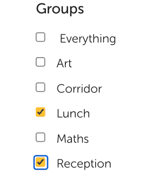
In the Groups section, select the Groups you want to add them to - by default, users have access to everything.
- Be sure to scroll down and click Save when you have made the changes.
NOTE
- Once a user is put in a Group, they will ONLY see things that are in the same Group(s) as them. This includes Players (if they can access those) and Content items.
-
Users will only be able to add and edit content in Groups they have access to; they will be able to see other Groups, but have no access.

Adding a Player to a Group
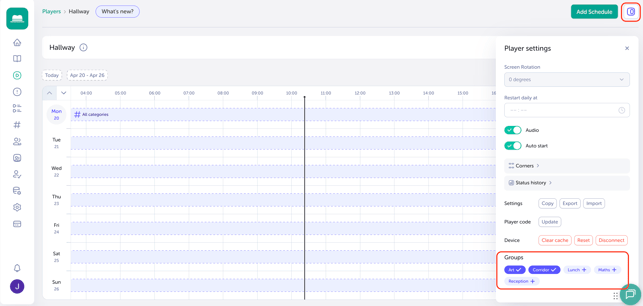
Go to Players and click on the player you want to add, click the player settings button and then scroll down and click the Group name. You can select as many as you want. Changes made here are saved automatically. A green pop-up notification will confirm that the Group was added successfully.
Adding Content to a Group
- Click the Edit icon on any content item.
- Scroll down and below Categories, you will see the Groups selector.
- Like with Players, click the Group name to select it. You can select as many as you want.
- Click Save.

NOTE
You can add Playlists to a Group, but only the content that is also assigned to the Group will show. Any content not assigned to the Group in the Playlist will be skipped.
Managing Groups
Once you've assigned users, content, playlists and Players to a Group, you can view what's been added quickly by viewing your Group in Groups.
From Groups, simply click the View Members button by the Group's name.
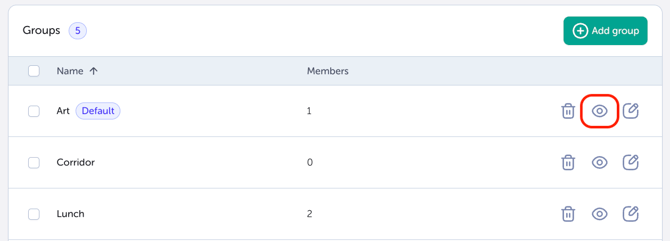
Here you'll be able to check that all items have been added successfully. If you notice any items are missing, you can go back at any point to add new items to your Group.
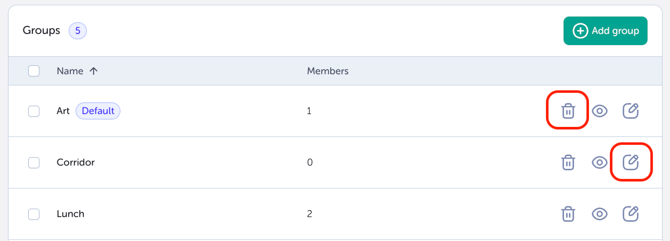
You can also delete your Group and change the name at any point, just click the Delete and Edit buttons.