
Emergency Alerts provide a simple method to take over all screens quickly to alert your audience to an emergency or important notice.
Emergency Alerts takes over all online screens within seconds*; it's important that all connected Players are running v6 of TrilbyTV Player or later. Devices using 5.x or below may be slightly slower.
IMPORTANT
TrilbyTV Player version 5.12 or lower will show emergency alerts at their next refresh, which may be up to 60 seconds after an update.
Setting Emergency Alert content
Alerts are made using content uploaded to your feed, which are converted to Emergency content. This can only be done by users with TrilbyTV Admin permission.
NOTE
-
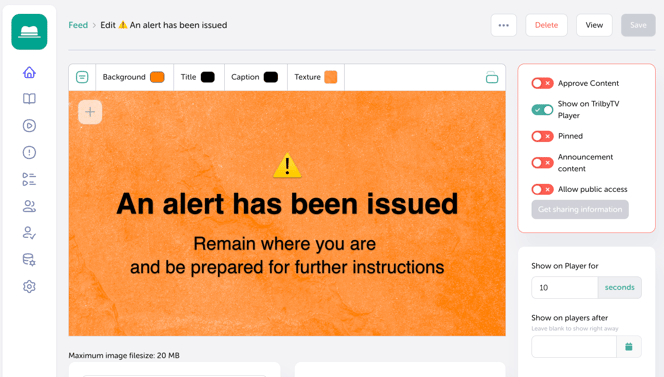
We suggest using a Title Slide or Slideshow for Emergency Alerts, as they are simple content items which reduce the time required to take over screens. More complex content such as Videos or Web Content can be used, but will need to download before displaying.
-
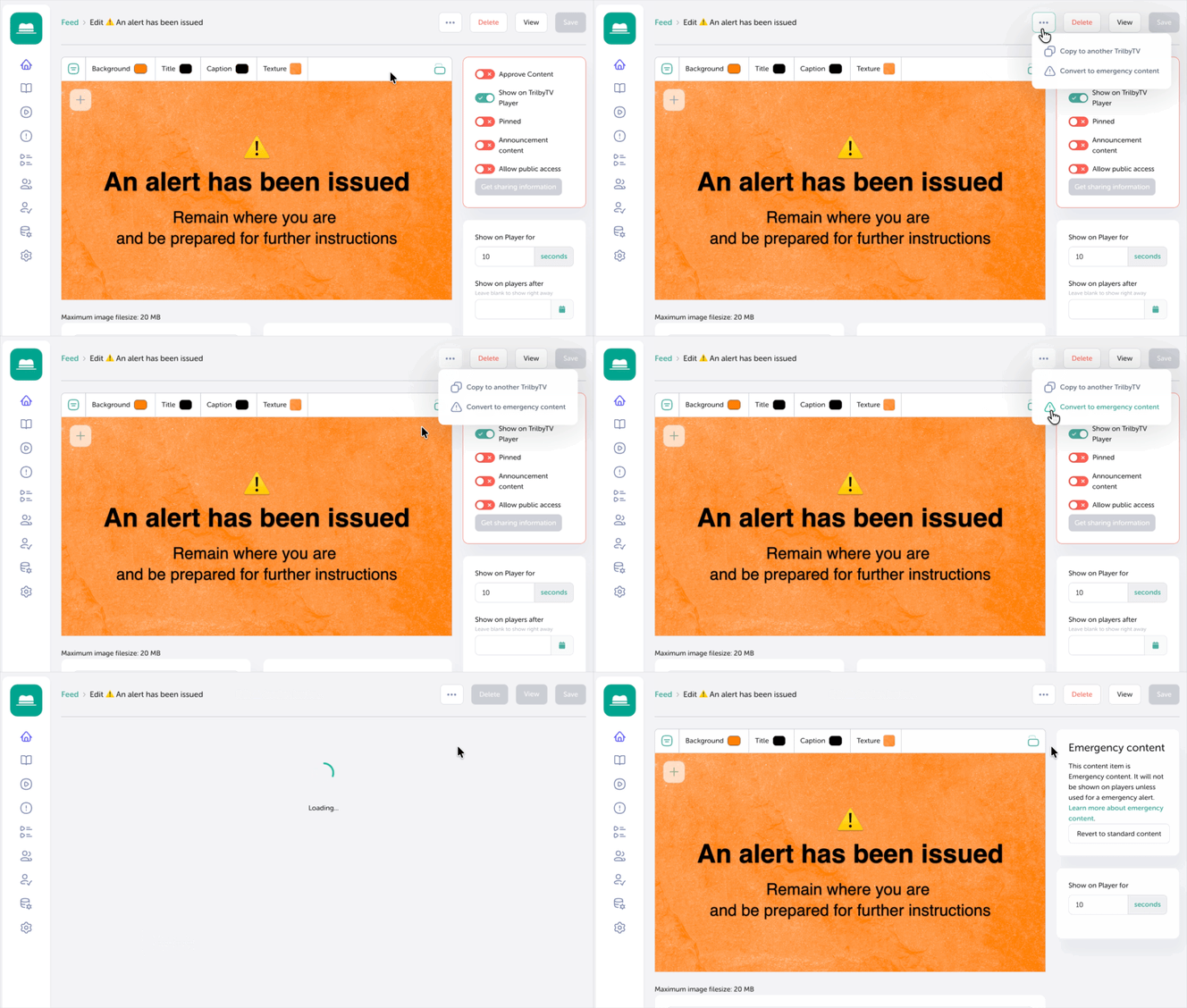
Once your content is ready, click the More options button.
-
Click Convert to emergency content to convert the item into an Emergency Alert. Once clicked, the interface will change and will have a reduced set of options.
NOTE
- You may wish to increase the Show on Player for time to reduce the number of times the content refreshes.
-
Any content that has been converted to Emergency Alert content can be reverted to normal content simply by clicking Revert to standard content.
Activating and deactivating Emergency Alerts
IMPORTANT
Activating and deactivating am Emergency Alert can only be completed by a TrilbyTV Admin.
Activating an Emergency Alert
To activate an emergency alert:
-
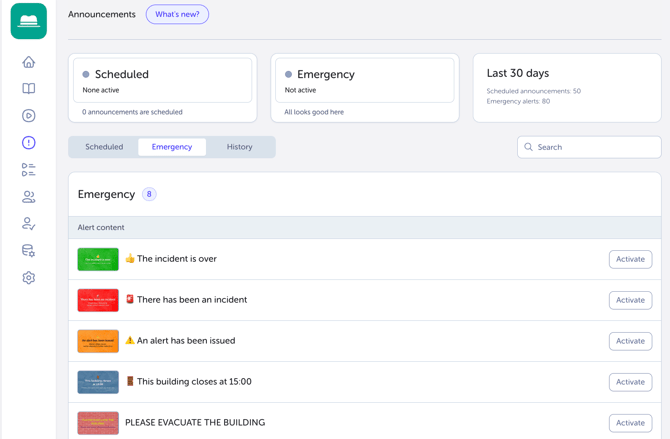
Go to Announcements and select the Emergency tab. Below, you'll see a list of all content items converted to emergency content.
-
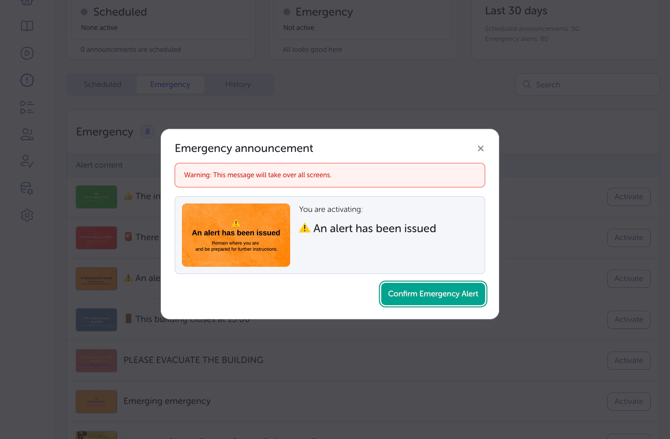
Find the relevant content and click Activate. The pop-up that appears after clicking will need a second click to confirm the emergency alert. Once done, the alert will take over all screens connected to your TrilbyTV.
Deactivating an Emergency Alert
To turn off an Emergency Alert:
-
Go to Announcements > Emergency
-
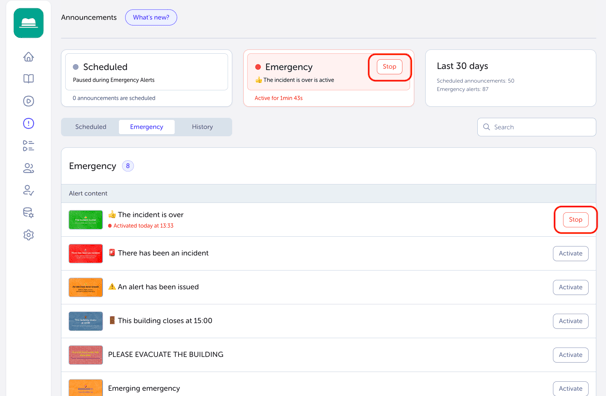
Click either of the Stop buttons on the Emergency Alerts page. Click Stop.
-
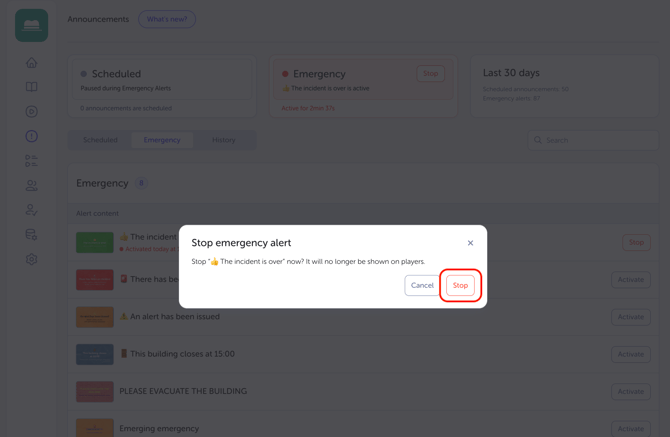
When prompted by the pop-up, click Stop again to confirm that the Emergency Alert is no longer needed.
NOTE
When an Emergency Alert is active, a red banner will show across all areas of the TrilbyTV app, making all users aware that an alert is active. You can click the banner to see the full alert content.

Emergency Alert History and Audit Log
TrilbyTV’s Emergency Alert feature provides Admins with a History page. This gives an overview of all Alerts and Announcements that have been activated in the last 12 months.
To see these, click on Announcements, then select the History tab.
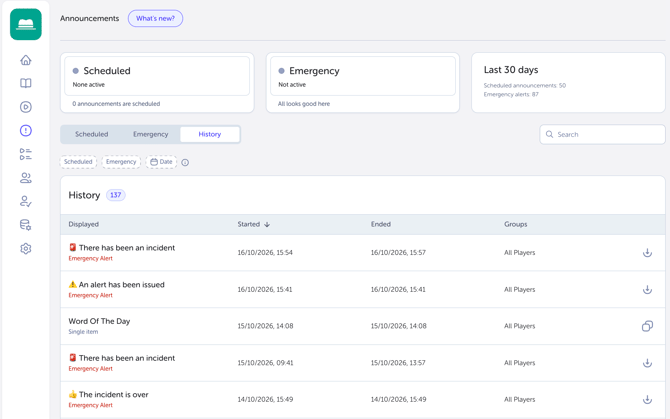
The History page will show:
- Name of the Emergency Alert
- Time Started
- Time Ended
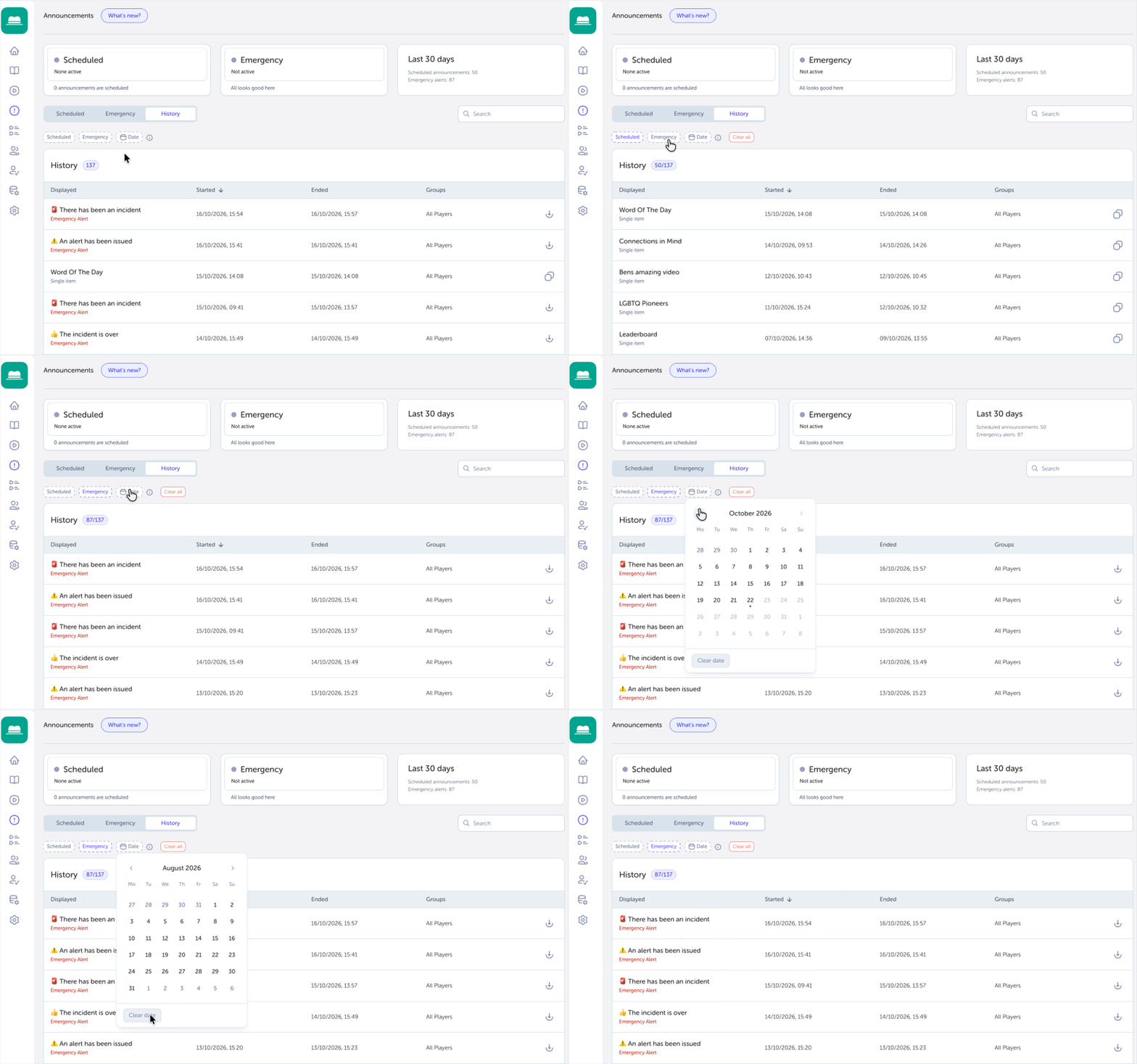
You can filter the view of past alerts by clicking Scheduled, Emergency or Date.
Emergency Alert audit log
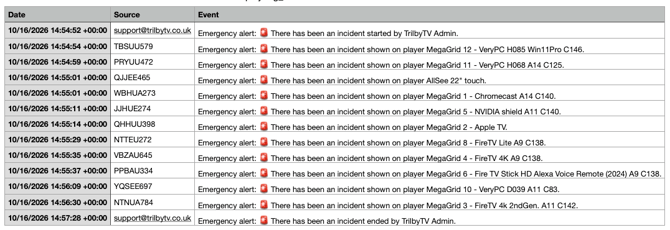
You can download a CSV of Emergency Alert activity for specific information on how the alert was covered by your system's Players. This allows you to see which Players received the Alert and when, making it easier to diagnose where any delays may have occurred. The CSV will show:
- Date: The date and time are shown in the format DD/MM/YY HH:MM:SS.
- Event: Each instance a Player was taken over by the Emergency Alert. Emergency alert: ⚠️ An alert has been issued, shown on the Player's Reception Screen
- Source: Who activated the Alert, which players received it and which User ended it.
NOTE
The following are the minimum Player versions required to access an audit history:
-
tvOS: v5.12
-
iOS: v5.12
-
Android/FireOS: v5.6
-
Windows/MacOS: v6.0