
Our Staff Board is TrilbyTV's answer to the typically printed staff board; thankfully, ours doesn't require ink...or a printer. To add this content to your screens, simply follow the steps below:
- In the top right corner of your Feed, click Add and select Smart Content.
- Click on Staff Board.
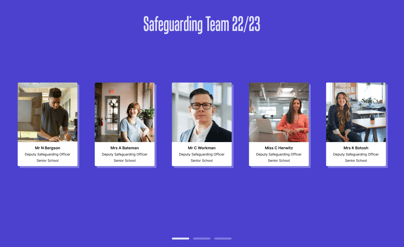
- In the top right corner, click Add To Feed.
- In the pop-up, you’ll need to add the:
- Name
- Role
- (Optional) second role
- Photo
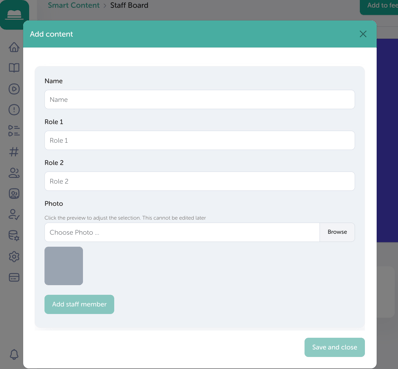
- Once you’ve entered these details, you’ll be able to click Add Staff Member. Repeat step 5 as many times as needed; at least one staff member needs to be added before you can save your content.
- Once updated, enter the title for your staff board, i.e. Safeguarding team 25/26.
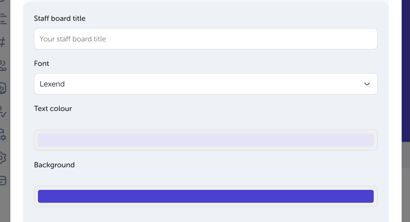
Optional: Choose the font, text colour and background colour. - Once you're happy with your staff dashboard, you can click Save and Close.