
TrilbyTV is simple to install on the LG webOS digital signage displays, offering an All-In-One digital signage solution. No additional hardware is required.
You will need:
- LG Digital Signage Screen
- a Wi-Fi network or Ethernet connection
- a TrilbyTV account
Installing TrilbyTV Player on an LG digital signage screen
- On setting up your LG digital signage screen using general settings, make sure you are connected to the internet via Ethernet cable and that the date and time are set correctly.
-
Using EZ Settings, go to the SI Server Settings.
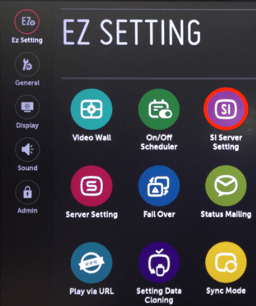
- Make the following changes:
- Turn on the fully qualified domain name.
- Enter the address https://player.trilbytv.co.uk/?app=true
- Change Application launch mode to Remote.
- Change Auto Set to Off.
- Turn your LG screen off and then on again.
- Within around 15 seconds, you will see a TrilbyTV logo and Player Code on the screen, and now you can link this screen to your TrilbyTV in Players.
Additional Configuration
You can also use LG screens in Portrait format. To do this, use the remote and go to: Settings>Display>Screen Rotation.
NOTE
LG Digital Signage screens run webOS Digital Signage; this is NOT regular webOS.
We have tested TrilbyTV on webOS Digital Signage 4 hardware and also on 6.0 via emulation only. Before purchasing an LG screen, we advise speaking with LG or your AV provider to confirm it is suitable for your needs. Below is a list of WebOS Digital Signage models we are aware of:
LG WebOS digital signage models (as of June 2022):
- UH7F-H
- UH5F-H
- UL3J-E33
LG WebOS digital signage models (as of April 2025):
TIP
Looking for hardware? We offer a range of screens with built-in player hardware as well as dedicated signage players which can connect to any existing screen. Take a look at our Screen Packages to find out more.