The latest ActivPanel Elements Displays from Promethean are powered by the Android 8 operating system, meaning they are perfect for TrilbyTV. The model we have used and tested is the ActivPanel Elements V7 Titanium, which has built-in Android 8.
You will need
- Promethean ActivPanel Elements V7 Interactive Display.
- A Wi-Fi network or Ethernet connection.
- A Google account.
- A TrilbyTV account.
Installing TrilbyTV
-
Using the Unified Menu, access the Locker App and then Android Settings to connect your screen to configure your network.

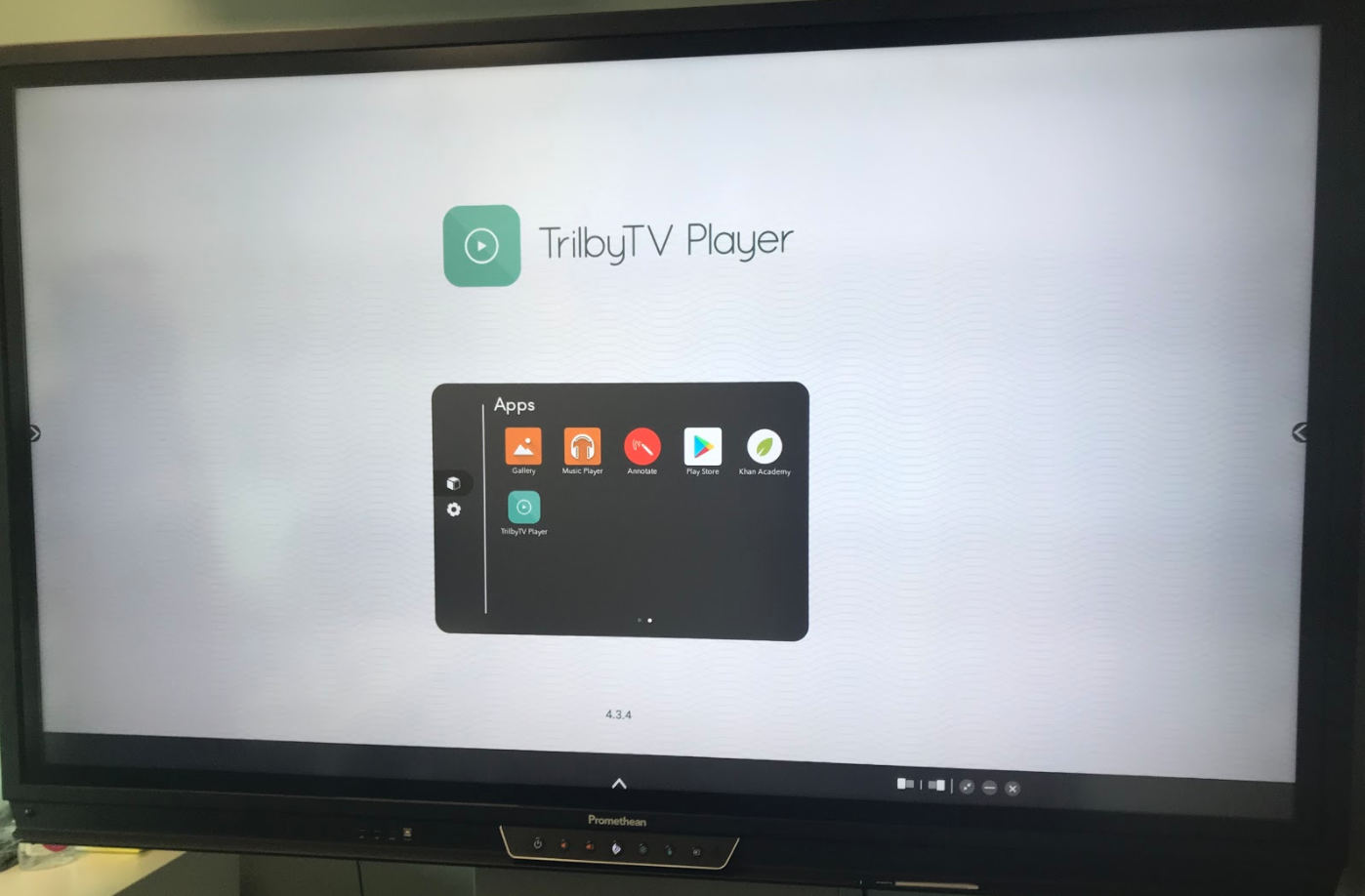
- Using your Google login, sign in to the Google Play Store to download and then open the TrilbyTV Player App.
- You will see a TrilbyTV logo and Player Code on the screen, and now you can link this screen to your TrilbyTV in the Player Dashboard. The TrilbyTV Player is now available to access within the Docker App.
NOTE
For YouTube content to play on the screen, you will also need to install the YouTube app.
TIP
Looking for hardware? We offer a range of screens with built-in player hardware as well as dedicated signage players which can connect to any existing screen. Take a look at our Screen Packages to find out more.