
IN THIS ARTICLE
If your organisation uses Google Workspace, Microsoft O365 or Apple School IDs, you can log into your TrilbyTV account using your existing email account. The first time, you’ll need a 6-character code from your organisation. Follow along with our guide for the provider you use for a brief explanation of how to get logged in using SSO and request SSO for your school.
Signing In With Google
If you are using Google Apps for Education, you can log in to TrilbyTV with your Google account.
Simply click the Sign in with Google button and enter your Google username and password.

If this is the first time you've logged in, you will be prompted for a 6-character TrilbyTV Code. This is used to join your account to your organisation's system, and you only need to enter this once.
If you are an administrator for your organisation, you can also ask us to link your Google Domain with your TrilbyTV system to allow new users to automatically join your system without having to enter your signup code. Email support@trilbytv.co.uk to request this.
Optional: Domain-Wide Delegation
As a domain administrator, you can make the process of logging in with a Google Apps account easier by granting permission for TrilbyTV to have access to the data it requires to log in. This will skip the user prompts when any users log in. We only request an email address and name when logging in to create an account.
- Visit https://admin.google.com/yourdomain.com/ManageOauthClients (replace yourdomain.com with your primary domain name).
- Enter this as the Client Name: 26187988719-tf1113q2lgpst6tm7or6g5jogue8o7a8.apps.googleusercontent.com
- In the Authorised Scopes add (make sure the two URLs are comma separated): https://www.googleapis.com/auth/userinfo.email, https://www.googleapis.com/auth/userinfo.profile
- Click Authorise.
You can sign into TrilbyTV with your iCloud account. The first time, you’ll need a 6-character code from your organisation.
If you are using Apple's iCloud ID, you can log in to TrilbyTV with your existing iCloud account.
On the Login screen, simply click the Sign in with Apple button and enter your iCloud ID username and password.

If this is the first time you've logged in, you will be prompted for a 6-character TrilbyTV Code. This is used to join your account to your organisation's system, and you only need to enter this once.
Signing In With Microsoft
You can sign in to TrilbyTV with your Microsoft account. The first time, you’ll need a 6-character code from your organisation.
If you are using Microsoft's Office 365 or have a Microsoft Live account, you can log in to TrilbyTV with your existing Microsoft account.
On the Login screen, click the Sign in with Microsoft button, then enter your username and password.

If this is the first time you've logged in, you will be prompted for a 6-character TrilbyTV Code. This is used to join your account to your organisation's system, and you only need to enter this once.
If you are an administrator for your organisation, you can also ask us to link your Microsoft Domain to your TrilbyTV system so new users can automatically join without entering your signup code. Email support@trilbytv.co.uk to request this.
Signing In with iCloud
You can sign into TrilbyTV with your iCloud account. The first time, you’ll need a 6-character code from your organisation.
If you are using Apple's iCloud ID, you can log in to TrilbyTV with your existing iCloud account.
On the Login screen, simply click the Sign in with Apple button and enter your iCloud ID username and password.
If this is the first time you've logged in, you will be prompted for a 6-character TrilbyTV Code. This is used to join your account to your organisation's system, and you only need to enter this once.
Signing In With Skolon
You can sign into TrilbyTV with your existing Skolon account in two ways.
For new users
If you’re not an existing user, you’ll first need to set up a trial (demo) or purchase a subscription via Add Tool on Skolon. Once the tool has been added to your school, locate TrilbyTV under My Apps on your Skolon dashboard, and click the icon to log in.
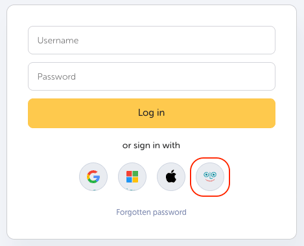
For existing users
Access TrilbyTV by clicking the icon from the My Apps page in the Skolon dashboard. You can also click the Skolon icon on https://auth.trilbytv.co.uk, which will redirect you back to login to Skolon if you haven’t yet, and then return you to TrilbyTV.