
Permissions are used to determine who can access certain features of TrilbyTV, such as who can upload or moderate content and who can manage your TrilbyTV account or Players.
You are given some default Permission Groups when you sign up but you can create your own, or edit existing groups.
NOTE
Any groups marked as Default will be assigned to new users when they register. It does not affect existing users.
Default Permission Types
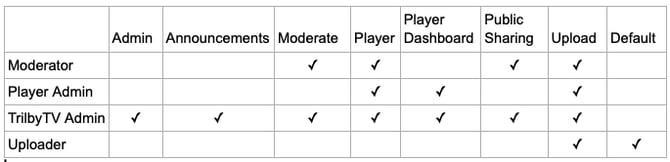
Permission definitions
Uploader: Basic Login, Edit profile, add new videos or slideshows and view your own and any approved content
Moderate: All Uploader permissions plus: Add Title Slides or Web Content, view and approve/unapprove all content, edit all content playback settings; enable/disable content to show on TrilbyTV Players, and delete content, create and edit playlists.
Player: Enable content to be shown on screens via the TrilbyTV Player
Public Sharing: Enable Public sharing on individual items. Requires Moderator permission to access the edit view.
Player Dashboard: Add and remove players, edit player settings, create and manage web player
Admin: Admin has the ability to edit all system settings and make changes to users' details.
NOTE
If you do not assign any permissions to a group, the users will still be able to log in, edit their profile and view any approved content.
Updating User Permissions
When logged in as an Administrator, Permissions and Permission Groups can be changed and new ones added. Users can be added to permission groups from Permissions, and they can be given permissions from Users.
Updating permissions groups:
- Click Permission Groups in the sidebar.
- Click Edit to change settings or click Add Group to create a new custom group.
Adding users to a Permission Group:
- Click the Permission Groups in the sidebar.
- Click Members to view users who are currently within that group or to add new users to that group.
- Select Users.
- Click Add to Permission Group.
- Click Done to save.
Updating user permissions from Users:
- Click Users in the sidebar.
- Click Edit by the user's details to change their permissions.
- Click Save.