
Smart Content enables you to add rich content to your digital signage. Choose the type of content you want to use, add your own data and set some display options.
NOTE
TrilbyTV on Apple TV will need to be updated to Version 5.1.0 or higher to use Smart Content
How to add a Smart Content item:
-
Click the Add menu from the Home feed
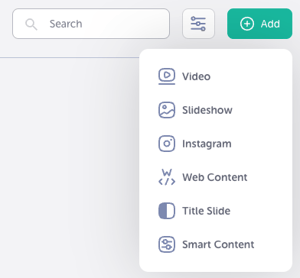
- Select Smart Content
- Click Add to Feed in the top right corner of the page
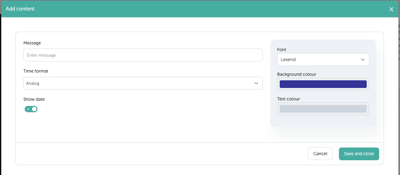
- Set your options, then Save and Close
- To make changes, simply click the Edit button when in the content item. This will give you the Edit options for each content item.
Smart Content Items
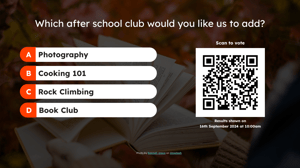
Polls: Pitch a question with some options and see what wins the popular vote. A poll is a great way to engage your audience and provide some interactivity so they get involved. Optionally, show results when the Poll is over or keep them secret and reveal them as you wish.
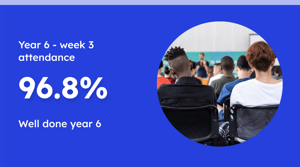
Super Stats: Display an achievement or progress to a target with Super Stats. Use Currency if you’re collecting for a charity, or percentage if you want to show some amazing attendance figures. Remember, you can come back and edit the content as the number changes.
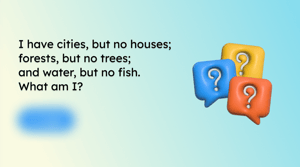
Riddles: A daily brain teaser with the answer shown at a time of your choice. Start with our riddles and add your own. A single riddle shows each day, and all riddles loop to keep everyone guessing.
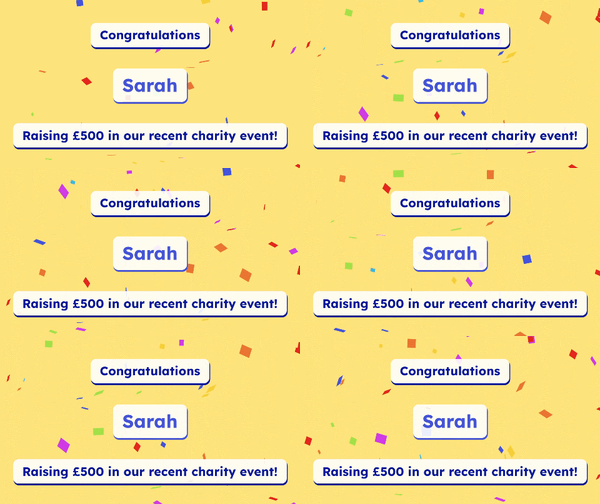
Celebrations: Celebrating success can help build resilience and motivate pupils to continue in their studies. Give some encouragement and recognise achievements with this Celebration content.
Awards: Share the achievements of your students with trophies, rosettes, awards and medals for students or staff.

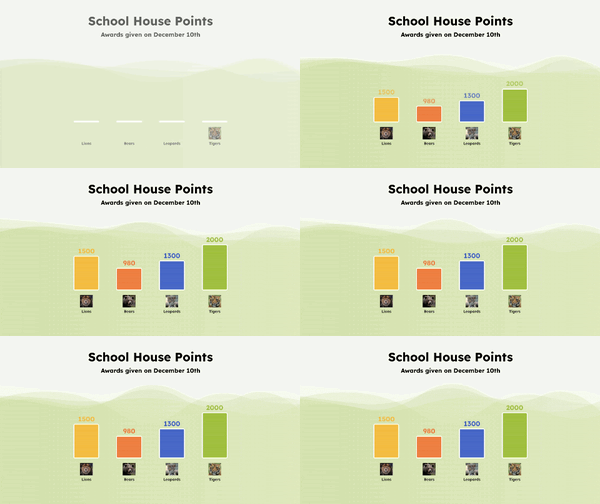
House Points: Use this content to keep your school updated with the latest house points or sports team scores. House points can help promote positive behaviour, encourage pupils to support each other and also bring a little competition.
Clock: Choose from analogue, or digital with or without a date. There are options to choose different colours for the clock to match your decor or school branding. The Clock uses your player's time and date, so make sure that is correct.
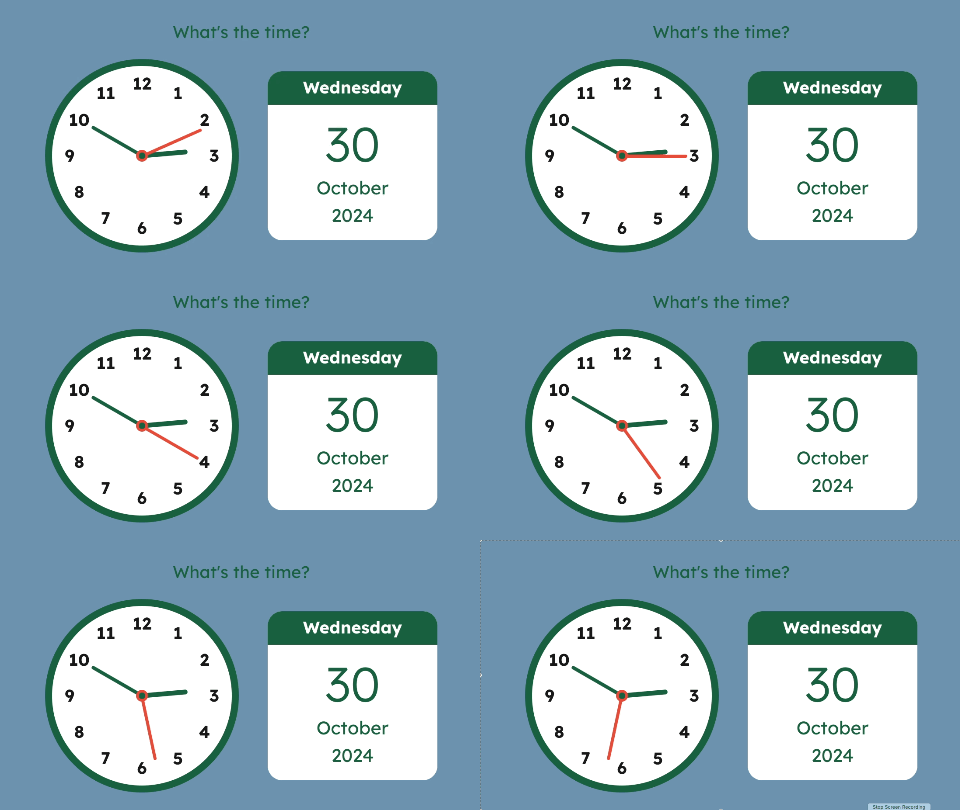
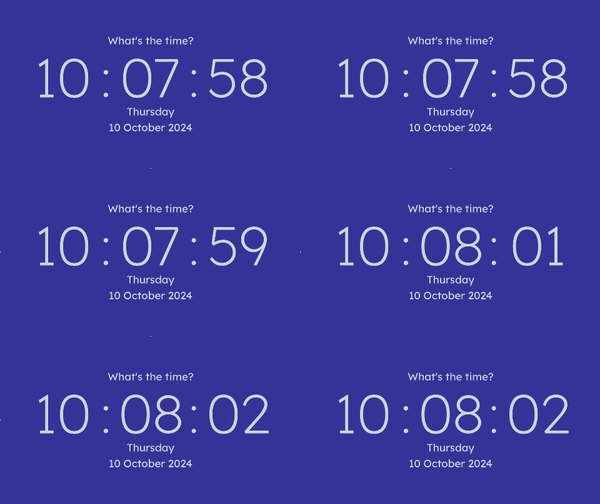
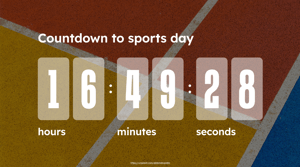
Countdown: You can count down to a single event (time and date) or count down to a time of day, such as lunchtime or the end of school and use that for a daily display. You can add as many Countdowns as you want, all with custom colours and backgrounds.
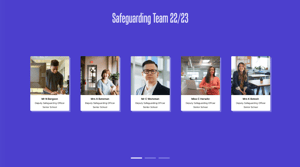
Staff Board: A digital signage version of a staff board.
Social Slide: Show your visitors your X (Twitter), Facebook, Instagram and YouTube usernames as well as your website address so they can easily follow you and stay connected anywhere.
Notice Cards: When you need to get a quick message out to everyone, you can use a Notice Card and set a time and date to start and stop showing the note. Great for out-of-hours messages or for use in the staffroom as a bulletin board.

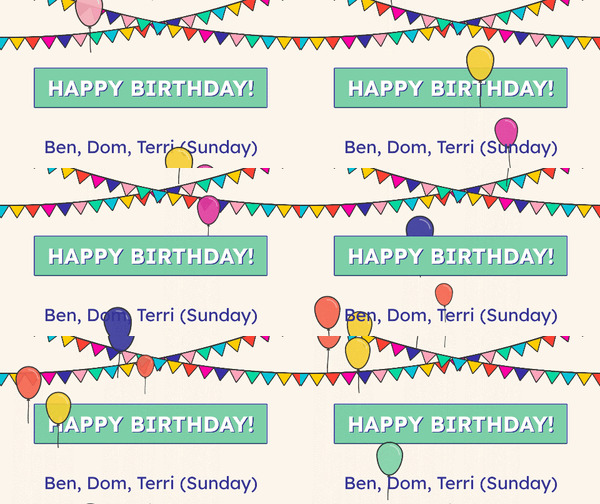
Birthday Slide: Everyone likes to see their name on the screen, and with the Birthday slide, everyone gets that annual recognition of their birthday. It’s easy to update from your school's MIS with our CSV import feature, or you can add and edit individually.
Inspirational Quotes: A set of beautifully presented motivational and mindful quotes, which you can add to with your own.

School/Trust Values: Bring your school or Multi-Academy Trust values to life on screen. Add as many as you like, then let the display rotate them at random throughout the day. Perfect for receptions, corridors and staff areas, it keeps your ethos visible, reinforces culture, and helps everyone remember what you stand for.

School/Trust Vision: Share your school or Multi-Academy Trust vision in one clear, powerful statement. This single piece of content displays the full vision in one place, making it easy for pupils, staff, parents and visitors to understand what you are working towards. Ideal for receptions and main corridors, it keeps your direction front and centre every day.

Training Session: Keep staff and students updated with upcoming training, clubs, workshops or events, and share registration links to join.

Leadership Message: Update staff and students with the latest weekly news from the head teacher, SLT or Trust CEO The timing of the content will auto-adjust based on word count.

Art Gallery: Create a beautiful Art Gallery with titles and descriptions, and pick from one of our 6 fun themes.
Then and Now: Reflect on how places and people have changed over time.