
Player Settings
Player settings provide high-level customisation for your Players. You can find the Player settings by going to Players, clicking on the Player you want to customise and then clicking the settings icon.
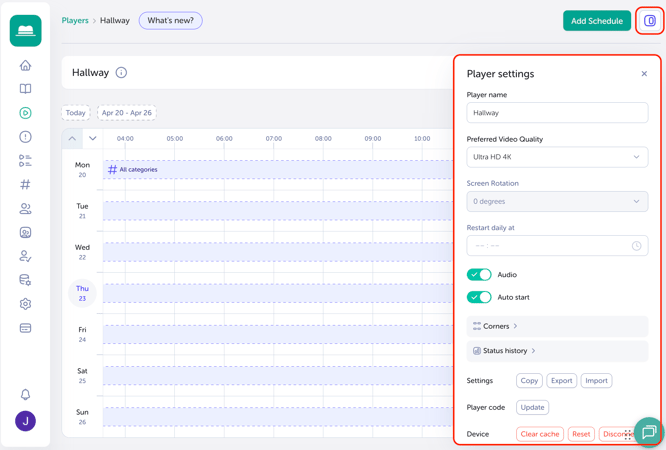
In Player settings, you will be able to change the:
- Player name: You can then change the name of your player at any time. Simply click and edit the name, then tab or click out of the field to autosave.
- Preferred video quality: Allows you to specify which video file type the Player should prefer for playback. If you want to show anything other than the default, you will also need to flip the Video Quality switches in the System Dashboard. See the Video Quality Settings support article for more info.
- Screen rotation (Android players only): will rotate the output of the Player app, used for when you have a Hardware device that does not support rotation, but the screen is mounted in a vertical/portrait configuration.
- Restart daily: Set a time here for the Player to attempt an automatic reboot. A reboot can help keep players running for longer periods as it clears out memory and gives the Operating System a chance to perform any maintenance or update tasks. We recommend setting this to a time when the screen isn't in use.
IMPORTANT
The Restart daily at feature only works on Android devices which allow root access.
- Audio: If you don't want any audio to play from TrilbyTV, which would come from a video or maybe web content, then set this to OFF.
- Autostart: When you install and launch TrilbyTV Player on your player device, it will automatically register itself to autostart when the device powers on. This is great to recover after a power cut, or if you use the timing feature on the TV to power off and on each day. Turning Autostart OFF will prevent the app from loading on startup. This might be useful if you have TrilbyTV Player installed on a classroom whiteboard, where it will only be used infrequently.
IMPORTANT
- Turning off Autostart does not work on the LG TV Player app. TrilbyTV will always Autostart on LG devices.
- Apple TV and iOS players do not support our Autostart feature, but you can set them as Single App items using an MDM.
- Corners: These can be configured on a per-player basis as well as globally. See our Corners guide for more information.
- Status History: Players should be checking in once every minute. Click the Status history button to view the check-in history for the past 24 hours.
If your player is unable to check at least 50 minutes in the hour, you'll notice a red marker - this could be indicative of wifi or network connection issues around that time. You can hover over for more information.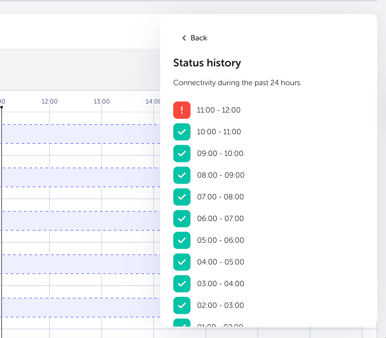
-
Copy and Import/Export: You can choose Copy Settings to replace the current player settings with those from another player. This makes it easy to add a new player device and use the settings you already have in place on another device.
You can also use the Import/Export buttons to save your current player settings. This allows you to save and reload settings. Click the Export button to download the current player settings. You can then use the Import button to upload that file again and replace the current Player settings with those from the file.
NOTE
If your settings refer to a playlist or categories that no longer exist, they will be missing after the import.
- Player Code (Update): Sometimes your TrilbyTV Player may show a new code. This can happen after an OS update or if you choose to clear the cache and settings on the player device. Rather than deleting and adding a new player, you can swap the code by clicking update. Just enter the code now showing on your TrilbyTV Player screen, and the settings will be copied from the old to the new player.
- Clear Cache: Clicking this will ask the Player to clear its Cache when it next refreshes. This means it deletes any content stored on the Player device and can be useful when troubleshooting.
- Reset: Clicking this will reset your player to its default settings. We advise you to export your settings before doing this, as this action can't be undone. All settings will be restored to their default values
- Disconnect Player: Clicking this will remove the Player from your TrilbyTV. The player will return to its initial loading screen, which will show the Code.