You can either add users directly as an Administrator or ask the users to add themselves to TrilbyTV.
With both methods, the user will receive two emails, one to validate their email address and one containing their username and password. If the user doesn't add an email address, then no emails will be sent (this is in place for education customers and students with no email address).
New users will automatically be assigned the permission group marked as Default in the Permission Groups settings. Unless you have updated these, the Default permissions are set to View Only. Once they are added, if a user needs more permissions, they will need to be allocated by an Administrator. For more information, see our Managing permissions guide.
On the first login, the user will be asked to confirm they agree with the Terms of Service and that they accept the Privacy Notice. They are also given the option to receive marketing information.
Adding a user via Self-Service
Administrators can provide users with a 6-digit code found in Settings - General. If a user has been given your TrilbyTV Code, they can add themselves. This code can be entered upon visiting www.trilbytv.co.uk and clicking Login, then Signup.
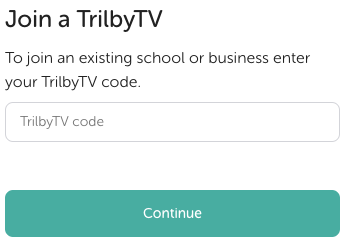
Enter the code in the box and click Join TrilbyTV, enter a few details and then they are done!
You can also email out a quick link for users, which looks like https://app.trilbytv.co.uk/signup?code=XXXXXX where you replace the XXXXXX with your TrilbyTV Code.
Adding a user as an Administrator
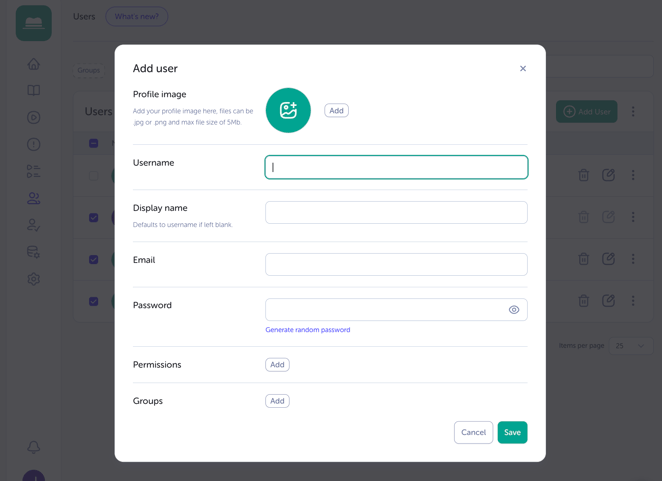
Administrators can add users directly and, at the same time, allocate permissions. To do this, head to the Users and click Add User.
NOTE
We suggest that you read through our guide, Managing Permissions, before allocating any permissions to users
Enter the details on the form, set the necessary Permissions, Groups and then click Add.
We strongly suggest using an email address as the Username.
Adding a new Moderator or Administrator
Any user can be made into a Moderator or Administrator.
Giving a user Moderator permissions enables them to view unapproved videos, the ability to approve them, as well as edit and delete any uploaded content.
Administrators can also make changes to users, including permanent deletion and changing their passwords. We strongly suggest you only have 2 or 3 TrilbyTV Administrators.
Changing a user to a Moderator or Administrator:
- Click the User icon in the sidebar to go to Users.
- Click Edit next to the username you want to change.
- To make a Moderator tick to enable the permission group that has the Moderator permission. You do not need to deselect the other selected permission groups.
- To make an Administrator tick to enable the permission group that has the
TrilbyTV Admin permission. You do not need to deselect the other selected permission groups.
- Click Save.
You can read more about permissions here.
Removing or Banning users
Users can be removed or banned from your system. Banning a user stops them from logging in or using the same username to create a new account.
To remove a user:
- Click the User icon in the sidebar
- Click the Delete button for the user you'd like to remove and click Yes to confirm.
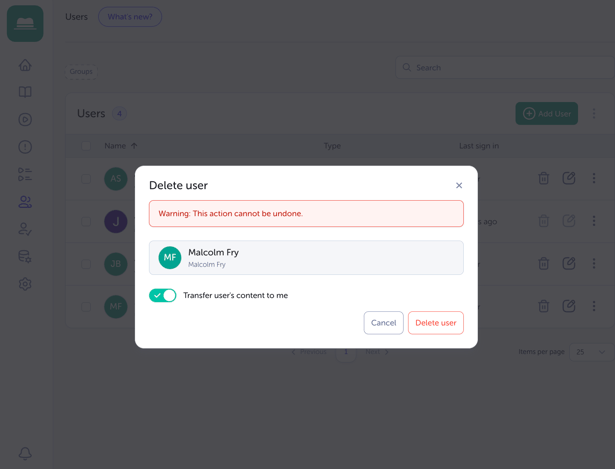
You will be asked what to do with the content they have added; you can either choose to delete it or transfer it to you.
IMPORTANT
You will see an option to Transfer users content to me - if this is not enabled, all content belonging to the user being removed will be deleted. Deletion of content is permanent and cannot be retrieved.
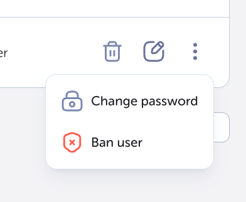
To ban a user:
- Click the User icon in the sidebar
- Click the more options (⋮) button
- Click Ban User
- Click Save
NOTE
-
A banned user will no longer be able to log in, but any content they have uploaded will be preserved.
-
To unban a user, you will follow the same steps as mentioned above; instead, this time it will ask you to click Remove ban.
To delete and ban multiple users:
- Click the User icon in the left hand navigation
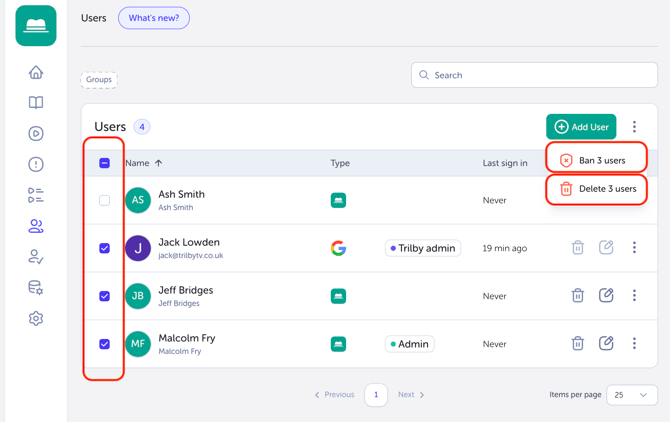
- Click the checkbox(es) to the left of the Username for those you want to remove.
- Click the 3 dots next to Add User to either Ban OR Remove (the button will tell you how many users you've selected)