
IN THIS ARTICLE
Categories are a way to tag content for searching and playback. In TrilbyTV, Categories are one way you can control what is shown on Players. Players can show one or more Categories and are a great alternative to Playlists.
You can use Categories to group content into themes. For instance, you may wish to tag content that's dedicated to your Primary School and, separately, content that's dedicated to Secondary School. Or perhaps you want to easily see content to do with Science or Art.
Creating and Managing Categories
IMPORTANT
Only users with Admin Permissions are able to create, edit and delete Categories.
TrilbyTV has a selection of default Categories when you first sign in. You choose to use these, or you remove them and add your own. To do this:
- Click Settings
- Click Categories in the left-hand menu
- Click Add Category
-
Enter the category name and click Add
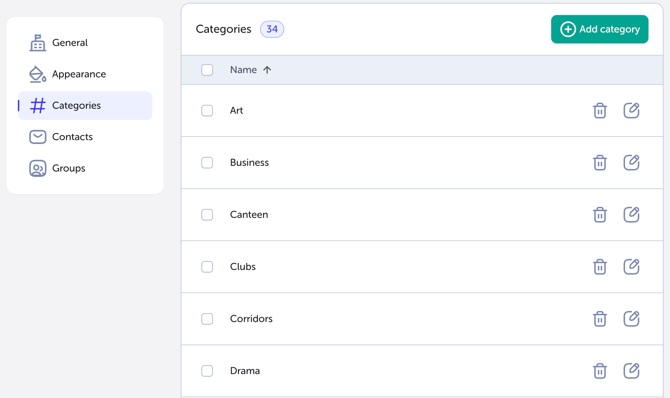
To edit a category: Click the pen icon to the right of the category, rename it accordingly and Save Changes.
To delete a category: Click Delete and confirm you're happy to delete the Category.
NOTE
Deleting a Category will not delete any content tagged with that category.
If a Player is set to play a Category as the Default Playback, you will see a 'No Content to display' message. You will need to update the Default Playback to a new Category, Playlist or Single Item
Adding Content to Categories
Categories allow you to set a 'theme' to a TrilbyTV Player and have it auto-refresh with new content as it is added to the category.
To tag a content item with a Category, when editing your content, you'll see the available Categories at the bottom of the page.
Just click on a Category to tag that content. You can add as many categories as you need to.

Playing specific Categories on a Player
When editing a Player's Default playback:
- Head to the Players section of TrilbyTV and select the Player you'd like to display your chosen Category.
- Click the #All Categories. Initially, Play All Categories will be selected, which will playback All Categories approved and marked to Show on your TrilbyTV Player.
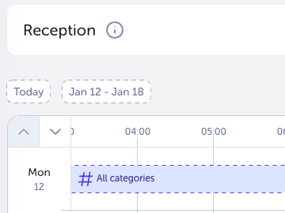
- Select the Categories you wish to playback.
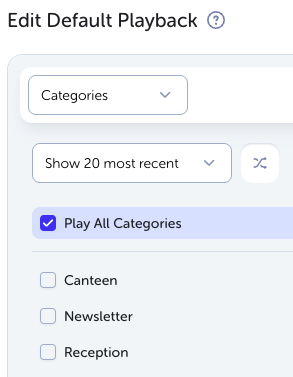
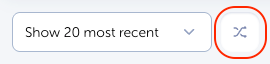
- Turn on Shuffle to enable random playback mode; otherwise, videos are played from newest to oldest. You can also limit the Player to only show the latest x items. This means the content displayed is always the latest addition.
NOTE
- When selecting Category-based playback, TrilbyTV displays content based on your chosen categories. For example, selecting Business and Corridors would playback ALL content tagged with the Business category OR the Corridors label, NOT content tagged with both Business AND Corridors.
- New or existing content tagged with any of your selected Categories will show on your Players.