What Are Players
TrilbyTV Player is our signage app and is used to show your content full-screen on a wide range of devices, including Android and Android TV, Chromecast, Chrome OS, AppleTV, Amazon Fire TV Stick, or PC or Mac, all without ads, news or other interruptions.
You can find out more in our Player support documents, including how to download and install the app for your chosen platform, how to configure your settings, and what content is supported.
TrilbyTV Player needs to run on a hardware device. You can find out more about TrilbyTV Player devices and links to the TrilbyTV Player apps on our Players page.
Once you've chosen and set up a Player, see our Player Settings document for how to configure it.
Adding a Player
You will need a device with the TrilbyTV Player app installed with the latest version of TrilbyTV for your Player device.
- Open the TrilbyTV Player app on your chosen device, and you should see an 8-character Player Code. This is unique to that device and will change if you delete/reinstall the app. Make a note of this code.
- Open your web browser and log in to TrilbyTV.
- Click the Players icon, then click the Add Player button.
- Enter the Player Code you noted, and then name the Player and click Add.
That's it! Now that the Player is connected to your TrilbyTV, it should start showing content within a minute or two.
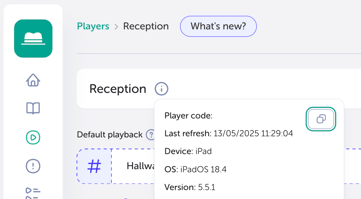
If you need to see the Player information at any point, you'll see the Player Code, Device, OS, Player Version, as well as the time it last checked in using the information icon to the right of the Player name:
That's it! Now that the Player is connected to your TrilbyTV, it should start showing content within a minute or two.
Using the Players Page
It's important to understand the features in the Players page, as they allow for ease of use, with them you can:
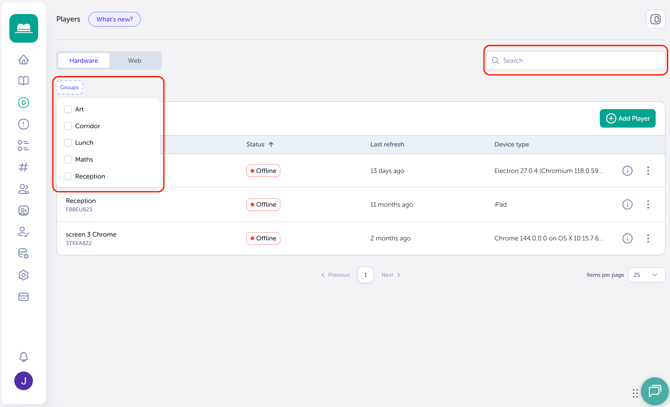
- Search and Filter: You can find your Players easily by typing their Name, Player code or Device type into the search bar. You can even filter lists based on your Groups
- Player Information Icon: Click the information icon to find all the Player information.
TIP
The Copy Player Information button can be useful when reaching out to our Support Team with any enquiries regarding your Player(s).
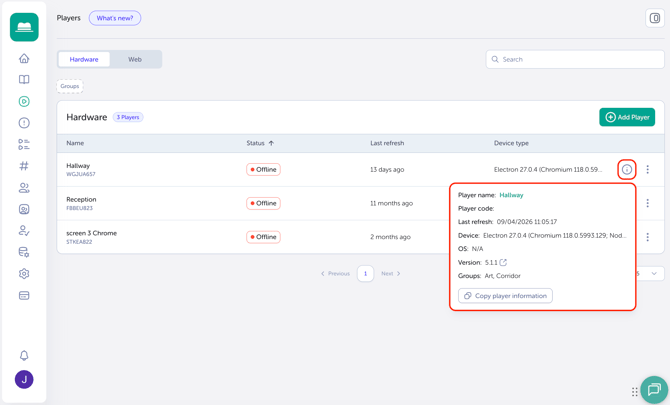
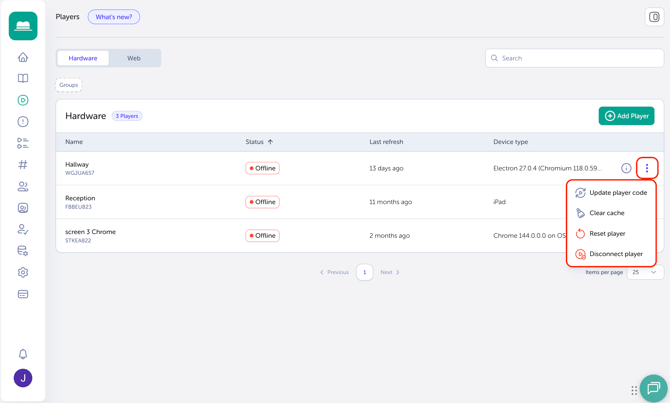
- Quick Actions Icon: Using this, you can quickly Update Player codes, Disconnect Players, Clear Cache and Reset Players, all from the List View.
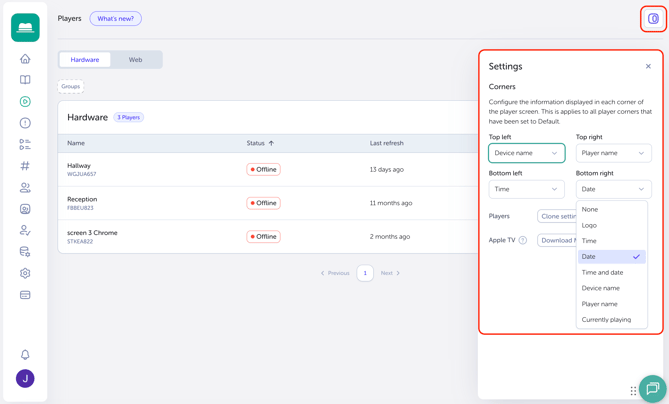
- Configuration Sidebar: Manage your Corner settings and easily clone Player Settings in the Player Settings Sidebar.
Adding a Player
You will need a device with the TrilbyTV Player app installed with the latest version of TrilbyTV for your Player device.
- Open the TrilbyTV Player app on your chosen device, and you should see an 8-character Player Code. This is unique to that device and will change if you delete/reinstall the app. Make a note of this code.
- Open your web browser and log in to TrilbyTV.
- Click the Players icon, then click the Add Player button.
- Enter the Player Code you noted, and then name the Player and click Add.
That's it! Now that the Player is connected to your TrilbyTV, it should start showing content within a minute or two.
If you need to see the Player information at any point, you'll see the Player Code, Device, OS, Player Version, as well as the time it last checked in using the information icon to the right of the Player name:
That's it! Now that the Player is connected to your TrilbyTV, it should start showing content within a minute or two.
What Content to Play
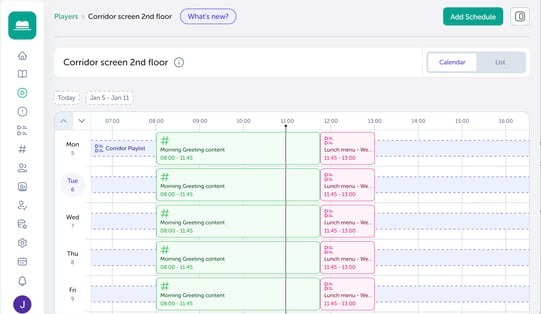
In Calendar View, click on the Default Playback row and select from your Categories, Playlist or Single Items to begin playback along with any other options available, such as Shuffle or Limit items. Remember to click Save when finished.
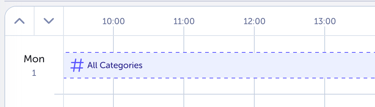
Similarly, in List View, click Edit on the Default Playback row to select and change the Default Playback.

You can add other schedules to playback different content at different times, for example, a home time message between 14:45 and 15:45. To set up schedules, take a look at our Using Schedules guide for more information.