
What are Web Players
Web Players are a combination of Players and Public Sharing. They allow you to group a series of content that will play back sequentially within a web browser. This makes them ideal for one-off use, sharing a group of content with others via email, or embedding on a webpage for others to see. They are also useful for troubleshooting and checking out what a Player will show.
Web Players also mean any device with a web browser can be a Player, some Smart TVs, media streaming devices and conference room display systems, can use a web page as a background or screen saver. Airtame, Air Server Connect are great examples of this.
Note
-
In order for a Web Player to show content, the individual items included must be marked "Allow Public Access". This is an extra security measure as Web Players are publicly available on the web to anyone with the URL, and therefore require explicit public access to be set per item.
-
Web Players will always be silent. Go to Enabling Audio on a Web Player to learn why and how to work around this.
-
Web Players are best suited for one-off use or sharing content externally (such as embedding in your website or as part of a newsletter), and as such, Announcement content will not be displayed. For those needing to use Announcements, we suggest using a PWA. You can see more information about PWAs in: Using our Progressive Web App (PWA)
Creating a Web Player
- Go to Players and toggle from Hardware to Web and click Add Web Player. Create a name for your Web Player. Your Web Player will be created and open the settings page, ready for you to make changes to any settings you'd like to update.
- From here, you can update your Player settings, including Default Playback and adding schedules, as well as access the Players' unique sharing links.
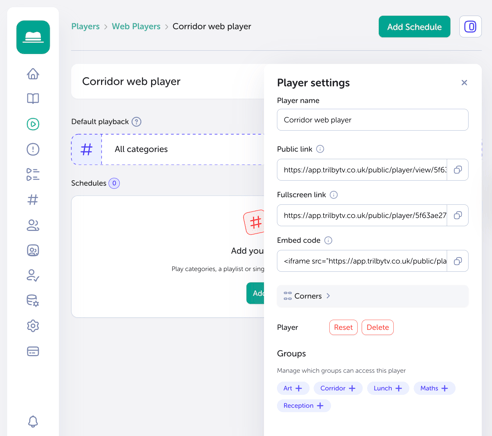
- To start playing content, click on Default Playback, and from there you can choose whether it will display a Category, an existing Playlist or a Single Item.
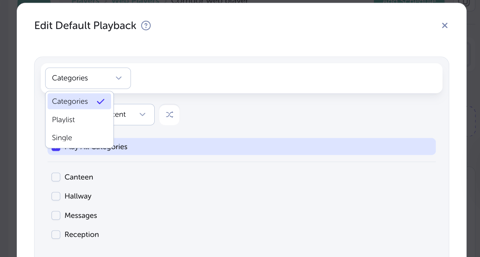
- If you choose Categories, you will see a list of categories you can select to include.
- If you choose Playlists, you can select the playlists that are available to use.
- [Optional] If you'd also like to play specific content at specific times, click the Add Schedule button in the top right corner of the screen and choose the Category, Playlist or Single item you would like to display.
Choose the days on which you'd like the content to be shown and add a Start and finish time. You have the option to repeat the Schedule on certain days of the week or only to run this schedule between certain dates. You can read more about schedules in our guide - Using Schedules.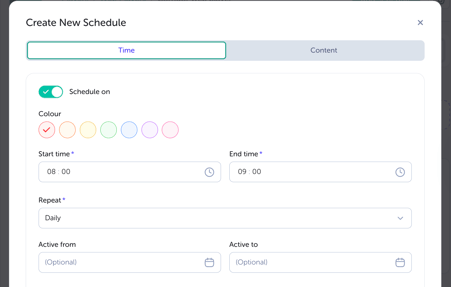
- Once created, click Save.
- From the right-hand sidebar, click on the Public Sharing link.
- Use the Embed code to include the video Player on a webpage or in your VLE, or use the Public Link to share outside the school, via email, or social media.
Example Embed Code: <iframe src="https://app.trilbytv.co.uk/public/player/9bb891d7-3ac4-4a11-897b-76c98a95d895" width="480" height="270" frameborder="0" allowfullscreen></iframe>
NOTE
If you have set up Corners on your Player, these will appear on your Web Players as well. You may wish to adjust these for Web Players; however, if you edit them on the Web Player, they will override the defaults set in Players.
Example Public Link Page
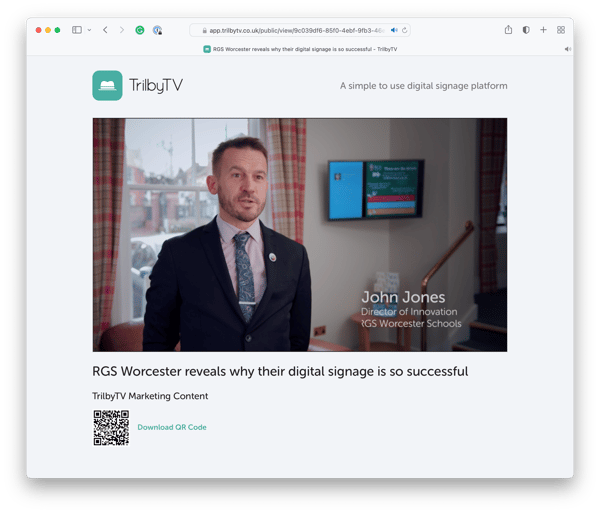
An example of an Embedded Player viewed on the web
Enabling Audio on a Web Player
Modern web browsers will not play audio on videos that are set to autoplay, and a user click is required to enable audio. For this reason, we mute the audio on all playback to ensure the files play automatically.
You can add some text to the URL to turn off the muting feature, but be aware that this means most browsers will require some user interaction to play the content. This is fine if the Web Player is used on computers, but not if used on signage screens.
Adding ?muted=false to the end of a Player's URL (the src value) will turn off the muting feature, and if supported by the browser, the content will playback with audio.
The URL will look like this:
<iframe src="https://app.trilbytv.co.uk/public/8062d068-dc96-4b4f-9117-29ed108b5c13?muted=false" width="480" height="270" frameborder="0" allow="autoplay" allowfullscreen></iframe>
Note that the ?muted=false text is part of the main URL and is right after the long set of letters and numbers, which are the ID of the item you are playing.